There are many reasons that make Linux an attractive operating system for use on desktop and laptop computers. It’s free, making it great for use in budget builds; it’s open-source, appealing to people who believe in the concept; and it’s lightweight, making Linux ideal for machines that are older or lacking in power.
While Linux has many things going for it, it also has plenty of factors holding it back. Firstly, the OS is more complicated, which is not ideal for novice users or those that are used to Windows and unwilling to learn something new. It’s also more work to get up and running as most PCs come pre-installed with a version of Windows, requiring the user to manually overwrite the operating system.
One of the biggest reasons for users shunning Linux has been its incompatibility with key software applications. For example, Adobe’s Creative Cloud and Microsoft’s Office suite are not natively supported through Linux distributions.
Gaming has, traditionally, been troublesome on Linux too as developers have focused mostly on Windows and also macOS in recent years. That’s slowly beginning to change now, so can Linux finally be used for gaming? There are a few ways you can make it work.
Browser-Based Games
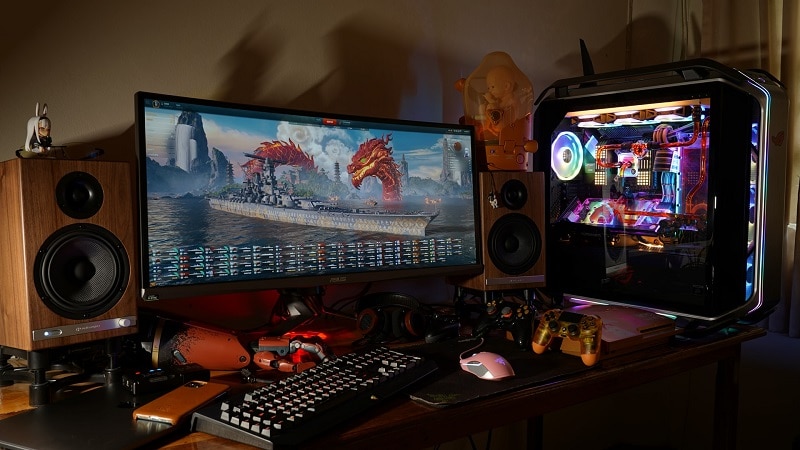
The easiest way to play games on a Linux PC is to find ones that can run inside a browser. In years gone by, this required installing the Adobe Flash plugin which was riddled with bugs and often slow.
Thankfully, today, HTML5 (which is supported by all modern browsers like Firefox and Waterfox) can handle all of this, giving you access to a wide range of quality titles like 8 Ball Pool, Runescape, and Basketball Arena.
Many modern casinos have also embraced HTML5, this means that you can play in casinos online through a web browser instead of having to download any special software. Therefore, there should be no compatibility issues with Linux, since everything is handled by the browser rather than the operating system.
Native Titles

Games that could be run natively inside Linux were once hard to come by, but this has changed in more recent years as companies like Valve have given a lot more thought to Linux users.
In fact, Valve has created SteamOS, a Linux-based operating system built specifically for gaming. The company also has begun to make its titles available for Linux, including Counter-Strike: Global Offensive, Left 4 Dead 2, and Borderlands 2 and 3.
Other publishers like Codemasters have also made many of their modern releases playable on the open-source OS too.
Through Translation

When games aren’t made available for Linux natively, there is still a way to make them run. Through a tool known as WINE, applications that are programmed for the Windows API are translated on the fly so that they are compatible with Linux’s POSIX calls.
Not all games are compatible with WINE, though the list of titles that work is very long and continues to grow. Popular examples of ones that do work include Hearthstone, League of Legends, Doom (2016), Skyrim, and Fallout 3.
While gaming on Linux is still more work than on Windows, it is a viable platform for playing many of the most popular modern titles. Over time, it is likely to become even better for gamers, provided you’re willing to tinker a little.
