The NOSPIN Group staff has
discussed this basic article many times and we finally agreed
that the best avenue is to write this article about a real
computer during the assembly. That is where I will
begin.
Today is November 18, 1998.
I am in the process of building a simple PentiumII-350 system
for a client. I will explain to you the simple steps
involved, display pictures of what I am seeing and hopefully you
as the reader will be able to use these steps in building your
own system. Not every component in this computer
will be the same as your own and/or you may have more devices in
your system. You will need to use common sense in adding
your additional components to this basic system. This is a
guideline to proper assembly.
|
Determine the
Components of the PC |
You will need to decide what
devices your computer will contain and be sure to have them all
on hand before you begin. My client has requested a basic
PII-350 computer for Internet use and as a home office. We
decided on the following components:
-
Intel PII-350
classic CPU chip with fan/heatsink
-
Microstar BX
motherboard (model MS6119)
-
64mg SDRAM
PC100 ram chip
-
8.4gig
Fujitsu UltraDMA IDE hard drive
-
Samsung 32X
CD Rom drive (model SCR3232)
-
Jaton 8mg AGP
video card (model 1740)
-
Enlight
mid-tower ATX case
-
Creative labs
AWE64 sound card
-
60watt
speakers
-
1.44mg Teac
floppy drive
-
Jaton 56k ISA
internal modem
-
Logitec 3
button mouse
-
105keyboard
In other words I am assembling a
basic PentiumII-350 with 64mg ram, 8.4gig hard drive, CD Rom,
sound card & speakers and a modem. A nice home office
or Internet machine.
|
Preparing to
assemble the system |
Now that you have
all the components together, you will need an area with electric
power available and room enough to spread out your work.
You should only require two basic tools to assemble any
computer:
1) Pair
of needle nose pliers
2) Phillips head screw driver
I have assembled hundreds of
computers and it takes me about 30 minutes to put one together.
If this is your first one, please allocate lot of time.
The last thing you want is to be rushed and create a problem
from rushing.
This is an important tip:
It is nearly impossible to put the wrong component in the wrong
place, unless you either force it or break it. Use
good judgment, take your time and get advice if you have a
problem. This is more a matter of common sense...
and should be fun, not a headache.
|
The Assembly (click on
pictures for large image) |
 |
The first thing we need to do
is open the case and prepare the base plane to receive the
motherboard. Each case is build differently,
but in our case I removed the plastic front plate by
prying it off with my hands.
I then removed three screws on the back
of the case allowing me to slide off both side covers and
finally removing the top cover. Now the interior
skeleton of the case is exposed.
*Note: The base plane
is the plate inside the computer the motherboard is
connected or screwed into, typically a large flat section
the motherboard sets upon.
|
 |
Now it is just a matter of
releasing the base plane from the case and sliding it out
off the case.
Removing the base plane allows for
easier attachment of the motherboard. If it is
possible with your case, you should follow this step.
Not all cases allow you to remove the base plane,
(especially the very inexpensive cases). In using
these cases you will be forced to seat the motherboard
into the case. This is more awkward.
|
 |
Taking the motherboard and
laying it on top of the case's base plane, I can see where
I will need to have stand offs, (small metal studs or
plastic nylon studs), to attach the motherboard to the
base plane. I placed two metal studs on the base
plane, (one on either side of the motherboard), and the
rest of the holes have corresponding nylon studs.
This provides for full support of the board and keeps the
solder joints from touching any part of the case.
I do not use the fabric washers that
come with the case. I like a clean contact between
the motherboard and case for electrical grounding.
If you have attached the motherboard properly, it align
with the openings in the back plane of the case for your
component cards and ports.
*note: The back plane
is the area of the case to the rear of the computer that
the video card, modem or other cards are screwed to and
open out for access to the features of the cards.
Sometimes this is referred to as the rear slot area of the
case.
|

|
The next
step is very important. Normally at this time
I would set the jumpers on the motherboard for the speed
of the CPU, (PII-350), I would be adding. Always
double check that these settings are correct. In the
case of this computer, Microstar uses CMOS settings, or
Bios software to configure the CPU. This saved me
from digging through the manual for the settings and then
pulling jumpers with my needle nose pliers. This is
a nice feature.
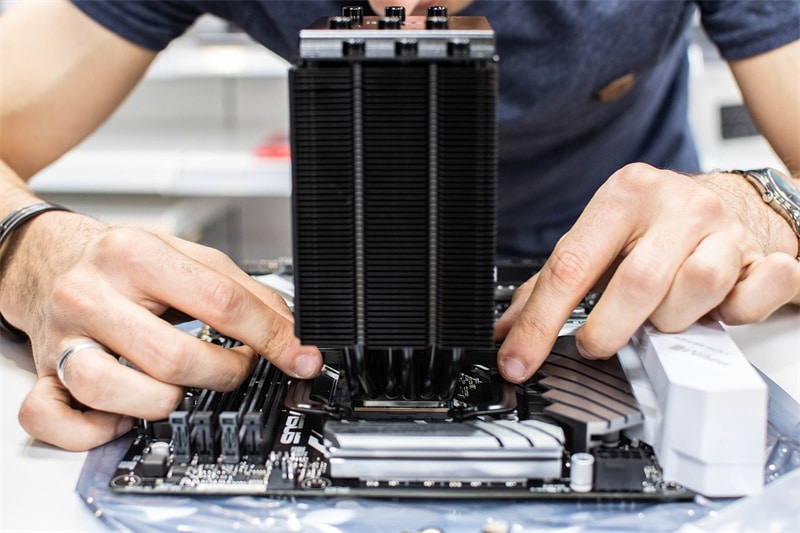
Then I take the CPU, locate the 'Slot
One' slot on the board, (the slot will only accept the CPU
and is nearly always turned 90s to the direction of the
other board slots) and then slide the CPU into place,
pressing down gently to snug it into the motherboard.
You will notice that the CPU and 'Slot One' have three
separated sections and the CPU will only go into the slot
one direction. This is the first example of using
common sense and not forcing the component.
With the CPU in place, I take the small
electrical wire accompanying the CPU and connect it from
the CPU to the motherboard. It only attaches one
direction on the CPU and the motherboard has a clearly
defined set of pins marked: CPU FAN. It connects
easily.
The CPU comes with small additional
braces to support the weight of the heatsink and fan.
I never use these for home systems. A home computer
does not have the motion abuse to require these additional
braces.
I then take the 64mg SDRam module and
press it into the 1st ram slot. (If you are unaware
which one is considered #0 or the 1st slot, consult your
motherboard manual). When the module is
pressed into place the locks on each end of the ram module
will snap into place. You cannot seat a SDRam module
backward, as the base only fits in one direction. We
are now ready to reattach the base plane to the case.
|
 |
I now reattached the base
plane of the case with the motherboard attached to the
case. Some cases require screws to hold it in
place, but the Enlight case has a release handle that is
pressed to hold it securely.
The next step is to connect power to the
motherboard. PentiumII motherboards are ATX by
design and use a special power connector. If you
examine this connector, (the largest one coming from the
power supply) and the motherboard's power connector, you
will see it can only be plugged into the motherboard
one way. DO NOT FORCE IT... it should
plug in easily.
|
|
The next
step is the video card. I am going to connect
the video card next to facilitate a quick test of my work
so far.
The video card I am using is an AGP
card. The AGP slot is the nearest slot next to the
CPU on the motherboard. You simply remove any covers
on the backplane for the slot and then press the video
card into the AGP slot. Then use a mounting screw to
attach the card to the back plane. We are now ready
to test the system.
I attached a power cord to the power
supply, attached a basic PS/2 keyboard to the keyboard
port on the outside of the back plane and then ran the
video cable from the monitor to the video port on the back
of the video card. Then, it was a simple matter of
pressing the power switch on the front of the case.
The computer flared to life, displaying the post or boot
process on the screen.
If all has gone well, as in my case, the
monitor will display the post process and allow you access
to the CMOS settings using the keyboard.
|
 |
It is time to connect the
case wires to the motherboard. These are the
small wires running to the power switch, the reset switch,
hard drive led light, power led light on the front of the
case.
It is best to use your motherboard
manual to determine the exact pins on the motherboard.
The wires in this case are each clearly marked for each
connector. In the case of this case the white wires
are the negative wires, (this is not always the case).
If you connect a wire the wrong direction, nothing will
happen except the light will not come on. Just
remove the wire and turn it around.
|


|
Now to the
Floppy drive, hard drive and CD Rom drive. I am
going to attach the hard drive as a single drive on the
1st IDE channel and the CD Rom drive as a single drive on
the 2nd IDE channel. I then verify that the hard
drive has the jumpers set to be a single drive and I set
the jumpers on the CD Rom as a master drive also.
I recommend doing this before you attach the drives so you
can more easily move and jumper pin covers.
The next step is to attach the drives.
I removed the 3.5inch drive bracket from the case by
pressing the spring locks holding it in place and sliding
it out. Then I screwed the floppy drive and the hard
drive into the bracket, so that the floppy drive would
align with the plastic face plate and the hard drive would
remain within the case.
Now it was a simple matter of sliding
the mounting bracket back into the case until the spring
locks snapped into place. These two drives are now
seated tightly.
|
|
Now for the CD Rom drive.
In this case it is only a matter of attaching the side
rails that accompany the case to the drive. This is
done with two screws on each side of the drive. One
tip about CD Roms and screws: there are two
rows of screw holes on the sides of a CD Rom drive.
If the tray is on the top of the drive, put the screws
into the bottom set of holes and vice-versa.
You do not want the screws to damage the inner workings of
the CD tray.
Now it is just a matter of sliding the
drive into the appropriate opening in the case, as the
rails will snap into place with the spring locks when slid
into place.
One more note: most cases do not
have nice slide rails to mount drives. Usually
you will need to slide the drive into the opening and then
screw it into the case. The is a nice advantage of
the Enlight case.
|
|
It is time
to attach the power wires to the drives. This is
really straight forward. The remaining wires from
the power supply have connectors that will only attach to
the appropriate power connectors on each drive. I
attached a power wire to the hard drive, the floppy drive
and the CD Rom drive. I like a neat appearance
inside, so I also used some small wire ties to bundle the
wires together.
The next step is the ribbon cables to
the drives. First I attached the floppy drive ribbon
cable. I did this by determining the pin#1 on the
motherboard and the floppy drive. Then I attached
the floppy drive ribbon cable to the motherboard with the
red, (or any color), stripe toward pin#1 on the floppy
connector and the same on the drive. The connector
on the ribbon cable that must be connected to the floppy
drive has a 'twist' in the cable directly next to the
connector. This designates this drive as the
"boot" floppy. This is important.
I then took the IDE ribbon cable and
connected it to the IDE-1 connector on the motherboard
with the red stripe toward pin#1 and ran the cable to the
connector on the hard drive with the red stripe once again
toward pin#1. I then ran a second ribbon cable from
the IDE-2 connector on the motherboard to the CD Rom drive
following the same procedure.
*Note: Determing the
pin#1 on the motherboard can be tricky. Often
you will see a number one, (1), to one side of the
connector. Sometimes it is easier to review your
motherboard manual, (usually there is a drawing of the
motherboard displaying which side is pin#1).
Determining pin#1 on
drives is far easier. It is nearly always the pin
adjacent to the power connector. If a drive is not
recognized by the system, try reversing the ribbon
cable... it maybe connected backward.
|
 |
The next step is to add in
the remaining component cards. First I took
the Sound Blaster AWE64 card and pressed it into the first
ISA slot. This slot is the one adjacent to the
PCI slots and if this confuses you, I recommend consulting
your motherboard manual's diagram of slot
configuration. Typically the ISA slots are the
last set, farthest from the CPU. Since this is a
plug-n-play card there are no jumpers to configure.
I then attached the card to the back plane with a mounting
screw. |
 |
Now for the
final card, the modem. Once again this is also
a plug-n-play card and I just pressed it into the next
available ISA slot, then attached it to the back plane
with a mounting screw. |
 |
My final item to attach is
the CD Rom sound cable. This small cable came
with the CD Rom drive. It attaches to the four prong
slot for it on the back of the CD Rom drive and extends to
the sound card. The sound card has a small connector
that this cable connects into. This cable is
important is you wish to play audio CDs in your computer,
if not... you can omit it. |
Now for one final test, I
inserted a Win98 boot disk into the floppy drive and
booted the system. During the post phase, I
pressed the 'DEL' key and entered the CMOS settings.
In here I had the system auto detect the hard drive for
the parameters. I save the settings and rebooted.
The system fired up the first time, nice and clean.
Now it is only a matter
of attaching the side & top plates to the case and
then pressing the front plastic cover back on.
I am now ready to partition my hard drive and format.
Since I am going to load Windows98 and this is an 8.4gig
hard drive I made one fat32 8.4gig partition and then
formatted the drive.
Building a computer is
really just this simple. It is no mystery or
secret. The only thing left to do is
actually load Windows98 and the other software the
belongs on the system.
|
|
|
|
|
|
|
|