Looking for the best SD card recovery software? Learn how to recover deleted photos, videos, and files from SD cards, compare your options, and restore data with Recoverit.
Losing files from an SD card is common. It can happen after accidental deletion, card formatting, corruption, camera errors, or interrupted transfer. If you are searching for the best SD card recovery solution, the key is to stop using the card immediately and choose software that can scan deeply, preview files, and recover photos, videos, documents, and other lost data safely.
For users who want a practical and easy tool, Wondershare Recoverit is a strong option. It supports SD cards, microSD cards, cameras, drones, USB drives, and many common file loss scenarios. It is especially useful when the missing data includes photos and videos.
This article explains how SD card recovery works, what to look for in a recovery tool, and how to recover files step by step with Recoverit.
What Is SD Card Recovery?
SD card recovery is the process of restoring deleted, formatted, hidden, or inaccessible files from an SD card or microSD card. Recovery software scans the card for file traces that still exist in storage but are no longer visible to the operating system.
This is commonly used to recover:
- Deleted photos
- Lost videos
- Formatted memory card files
- Corrupted SD card documents
- Camera, drone, or dashcam footage
- Hidden or unreadable files
In many cases, recovery is possible if the data has not been overwritten by new files.
Common Reasons SD Card Data Gets Lost
- Accidental deletion: Files are removed by mistake from the card or after transfer.
- Formatting: The card is formatted in a camera, phone, or computer.
- Card corruption: Unsafe removal, bad sectors, or file system damage make files disappear.
- Device errors: Cameras, drones, and phones may fail to read or write correctly.
- Virus or malware: Files may be hidden, deleted, or damaged after connecting to an infected computer.
How to Choose the Best SD Card Recovery Software
The best SD card recovery tool should do more than basic undelete. These are the features that matter most:
- SD card and microSD support for cameras, phones, drones, and external devices
- Deep scan capability for formatted or corrupted memory cards
- Broad file type support including JPG, PNG, RAW, MP4, MOV, DOCX, PDF, and more
- Preview before recovery so you can verify files first
- Simple workflow that reduces mistakes during recovery
- Photo and video recovery strength for media-heavy SD card use cases
Why Recoverit Is a Strong Choice
Recoverit stands out because it covers the most common SD card recovery needs without making the process complicated.
- Supports SD cards, microSD cards, cameras, drones, USB drives, and external storage
- Recovers 1000+ file types including photos, videos, and documents
- Useful for deleted, formatted, corrupted, and hidden files
- Designed for photo and video recovery scenarios
- Simple 3-step workflow that fits both beginners and experienced users
If you want more memory-card-specific resources, Wondershare also has a dedicated SD card recovery solutions hub. For broader file loss scenarios, users can also check the main data recovery for windows and the Recoverit homepage.
Recoverit vs Basic Free SD Card Recovery Tools
| Feature | Basic Free Tools | Recoverit |
| Recover deleted files | Sometimes | Yes |
| Recover formatted SD cards | Limited | Yes |
| Recover corrupted card files | Limited | Yes |
| Photo and video recovery focus | Usually basic | Stronger |
| Preview before recovery | Varies | Yes |
| Beginner-friendly workflow | Mixed | Yes |
| Broader device support | Limited | Yes |
How to Recover Files from an SD Card with Recoverit
Below is the practical 3-step process. This is the part many generic articles skip, but it matters most for conversion and usability.
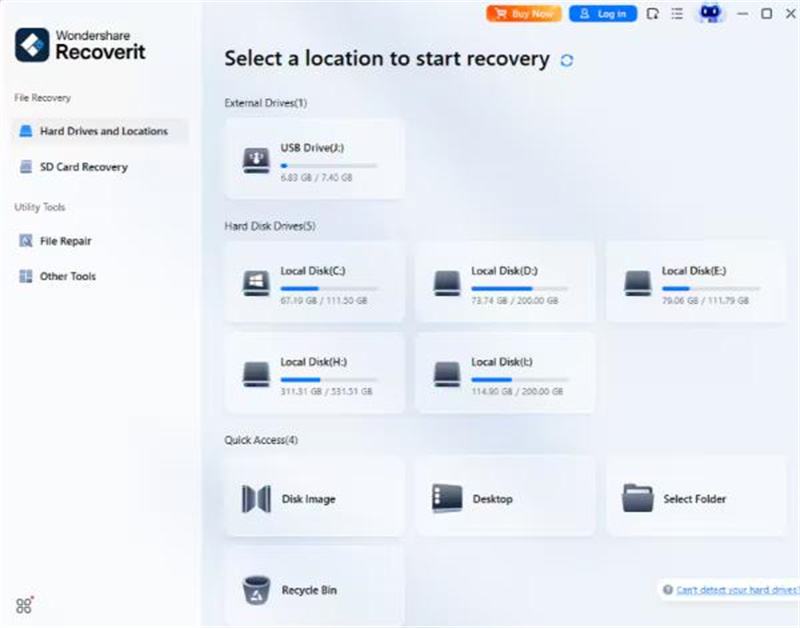
Step 1: Connect the SD Card and Select It in Recoverit
Insert the SD card into your computer with a reliable card reader. Open Recoverit and choose the SD card from the list of available drives. Make sure you select the correct card before starting the scan.
Purpose: This step tells the software where the lost files were originally stored.
Expected result: The SD card appears as a target location inside Recoverit and is ready to scan.
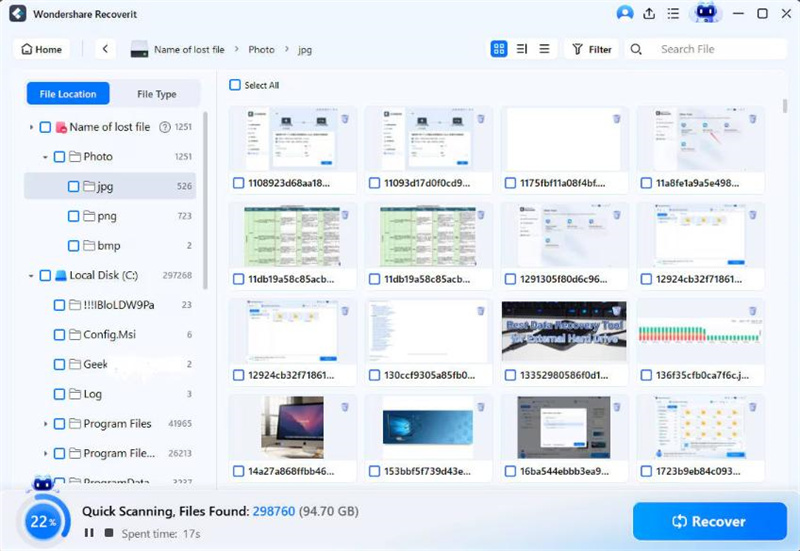
Step 2: Scan the SD Card for Deleted or Lost Files
Click scan and let Recoverit search the card. The software will look for deleted photos, lost videos, formatted files, and damaged file records. If the card is large or the damage is more serious, the scan may take longer.
Purpose: This step identifies recoverable data still present on the SD card.
Expected result: Recoverit lists recoverable files by type, path, or status, including items you thought were gone.
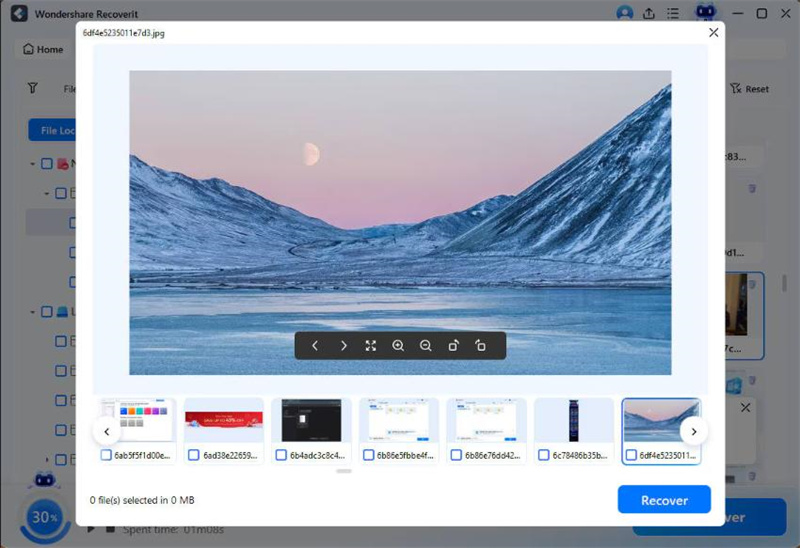
Step 3: Preview the Files and Recover Them to a Safe Location
After the scan, preview the files you want to restore. Select the needed photos, videos, or documents, then save them to a different drive or folder. Do not recover them back to the same SD card, because writing new data there can overwrite recoverable content.
Purpose: This step confirms file quality and restores your data safely.
Expected result: The selected files are recovered and saved to a secure location on your computer or another drive.
Tips to Improve SD Card Recovery Success
- Stop using the SD card immediately after data loss
- Do not take new photos or record new videos to the card
- Do not format the card again unless recovery is already completed
- Do not save recovered files back to the same card
- Use a stable card reader and direct computer connection
- Start the scan as early as possible
When SD Card Recovery Software Works Best
Software recovery usually works best when:
- The files were deleted recently
- The SD card was formatted but not reused much
- The file system became corrupted
- The device reports the card as unreadable
- Photos or videos disappeared after transfer interruption
If the card has physical damage, repeated disconnection, or severe hardware failure, software may not be enough. In those cases, professional recovery service may be necessary.
Why Choose Recoverit
- Built for SD cards, memory cards, cameras, USB drives, and external storage
- Supports 1000+ file types
- Useful for deleted, formatted, and corrupted card recovery
- Strong fit for photo and video recovery
- Clean and simple recovery workflow
- Suitable for both Windows and Mac users
Final Thoughts
If you are comparing options for the best SD card recovery tool, focus on software that can handle real recovery scenarios instead of just simple undelete cases. For users dealing with deleted photos, missing videos, formatted memory cards, or corrupted storage, Recoverit is one of the better choices because it is practical, broad in device support, and easy to use.
Once data loss happens, speed matters. Stop using the card, scan it as soon as possible, and recover files to another location. That gives you the best chance of getting your data back.
