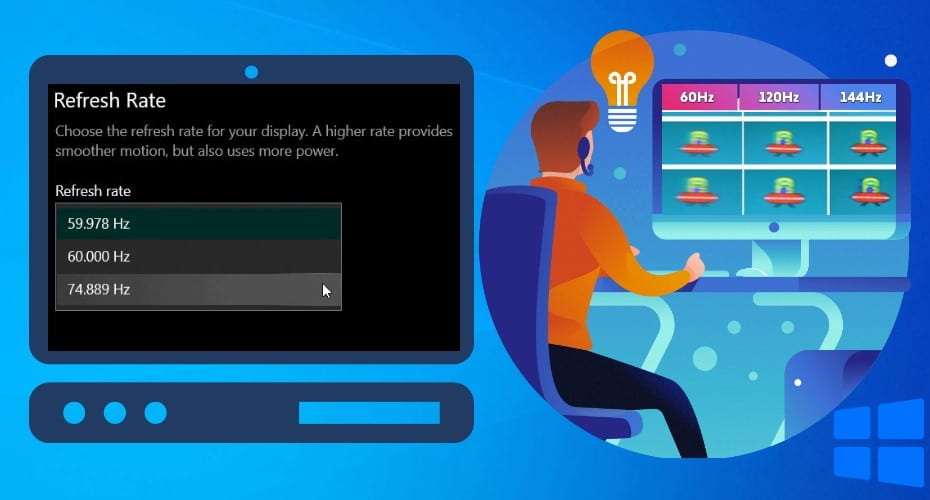
Do you know how to set, check and monitor the refresh rate on your windows 10? In this article, you will learn the various strategies to use. There are both inbuilt methods and applications you can use for this.
The monitor refresh rate is the number of times your monitor updates with new images per second. The higher the refresh rate, the smoother the delivered visuals on your monitor. The monitor creates the illusion of motion by a quick succession of still images. This is measured in Hertz (Hz).
However, this mechanism does not apply to LCD monitors. You can also alter the refresh rate though it depends on the monitor and the graphic setup it has.
How to Test Monitor Refresh Rate Online
1. Testufo
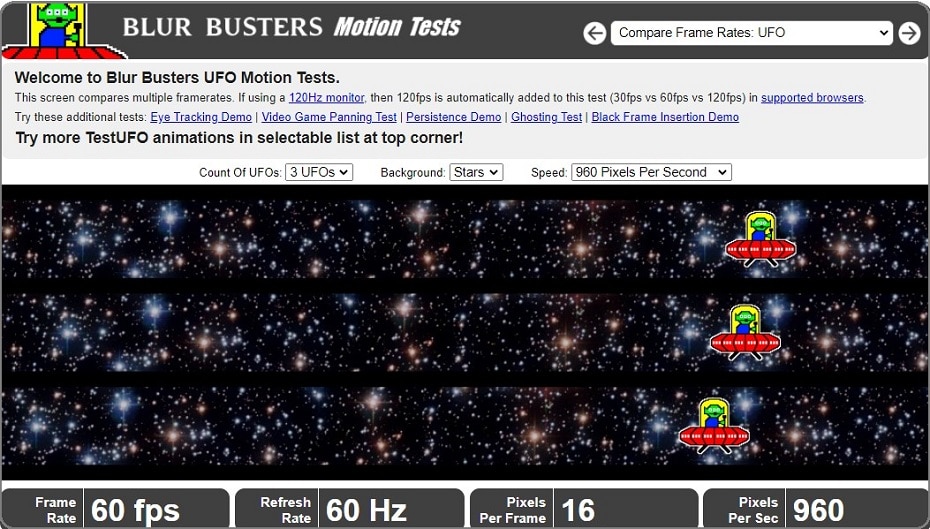
Testufo compares multiple frame rates. If you are using a 120Hz monitor, then 120fps is automatically added to the test while being compared to 30fps and 60fps. It is easy to use it and you won’t have trouble while trying to figure out the refresh rate.
2. Frames per second

Frames per second help show the visual difference between various frame rates and motion blur. Motion blur is a natural effect when you film the world in discrete time intervals. Without motion blur, the animation would appear like it was jumping instead of flowing like a fluid. Through this website, you can also compare different frame rates per second with motion blur and those without motion blur.
3. Eizo Monitor Test
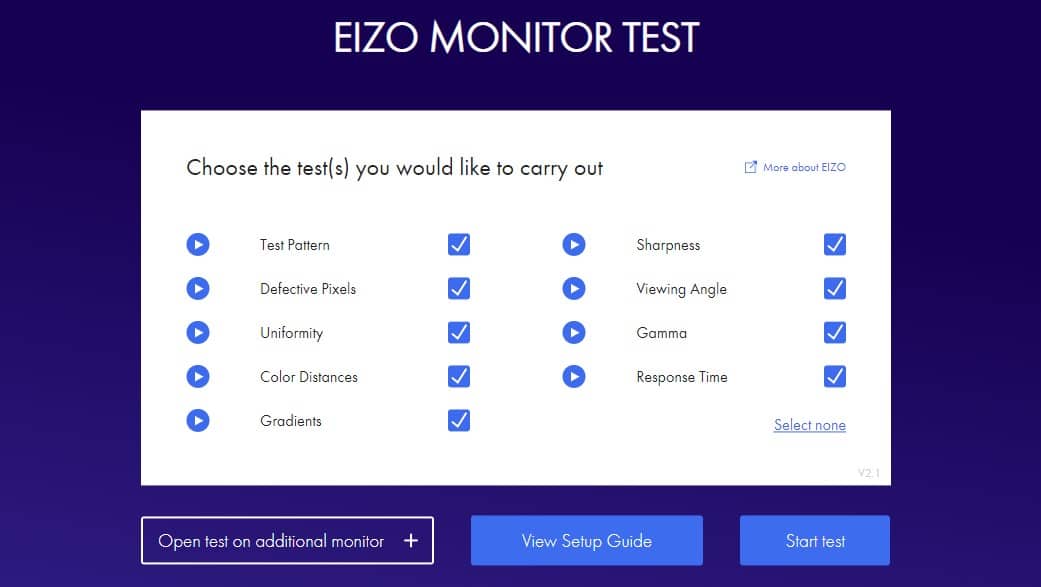
This is an effective online tool for testing the refresh rate of your monitor. The good thing about Eizo Monitor Test is that it also tests other features of your monitor. They include sharpness, color distances, and defective pixels.
However, please note that you have to choose items that you wanna test using the Eizo Monitor Test tool. All you need is to mark the box after the item that you wanna test and you're good to go. Just visit the tool’s site and test whether your monitor is functioning as expected.
4. Display Test
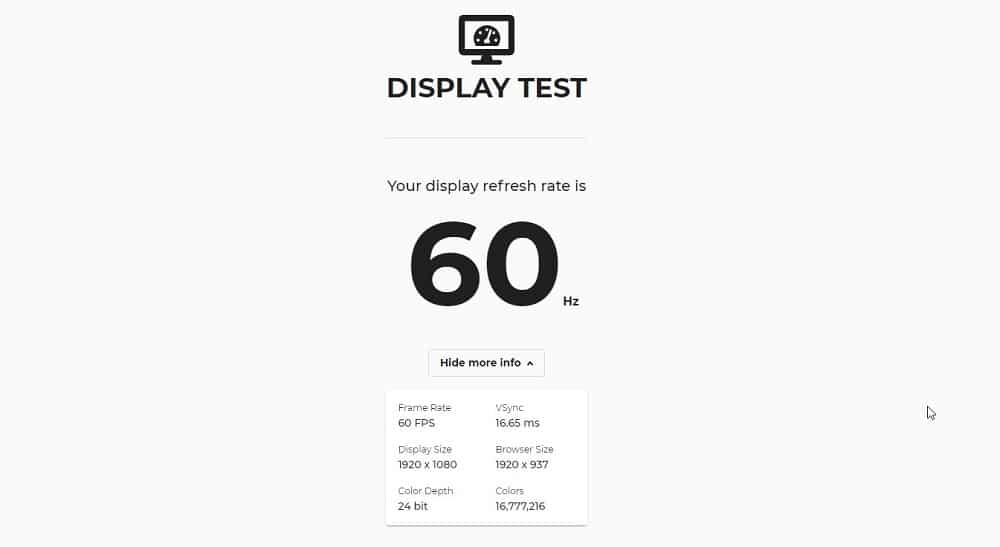
This is a cool and simple to use online tool that you can use to test the refresh rate of your monitor. However, you should note that the Display Test tool shows results to a single decimal point but he results in seconds.
All you need to do is launch the tool’s site and monitor test refresh rate will start once you hit the “Go” button. The good thing with the Display Test tool is that it works on almost all browsers and it has a friendly UI.
5. Display HZ
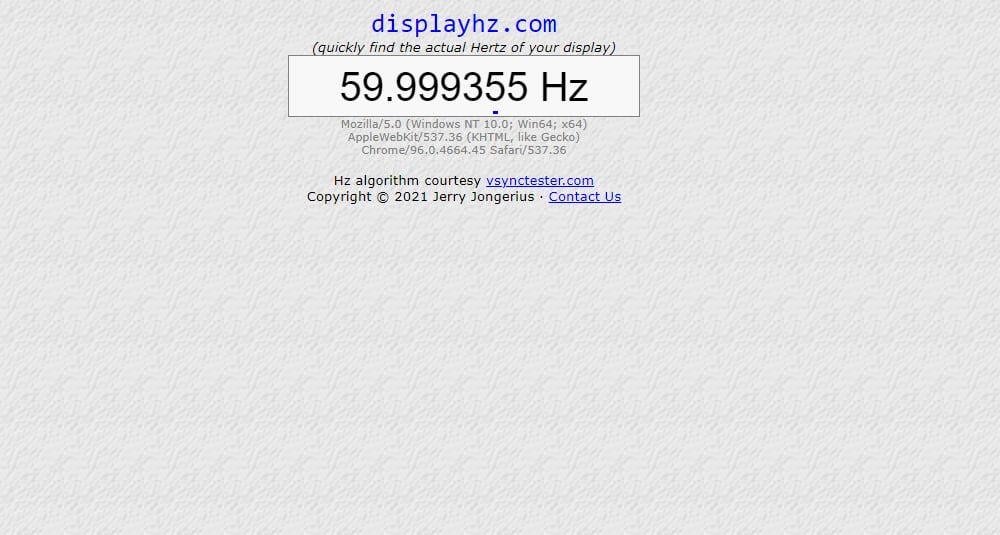
This online tool is easy to use and you will get results about the refresh rate of your monitor in Hertz (Hz). Display HZ tool is super-fast and you get results in a few seconds. Additionally, the tool is easy to use and you don’t need any IT skills to use it. Just launch the tool’s website and it will automatically start testing your monitor refresh rate.
If you have used Vsync Tester before, Display HZ is its improved version. Unlike other tools, Display HZ is highly accurate as it gives results in six decimal points. This is the tool to go for if you’re comparing multiple screens.
6. Device Tests
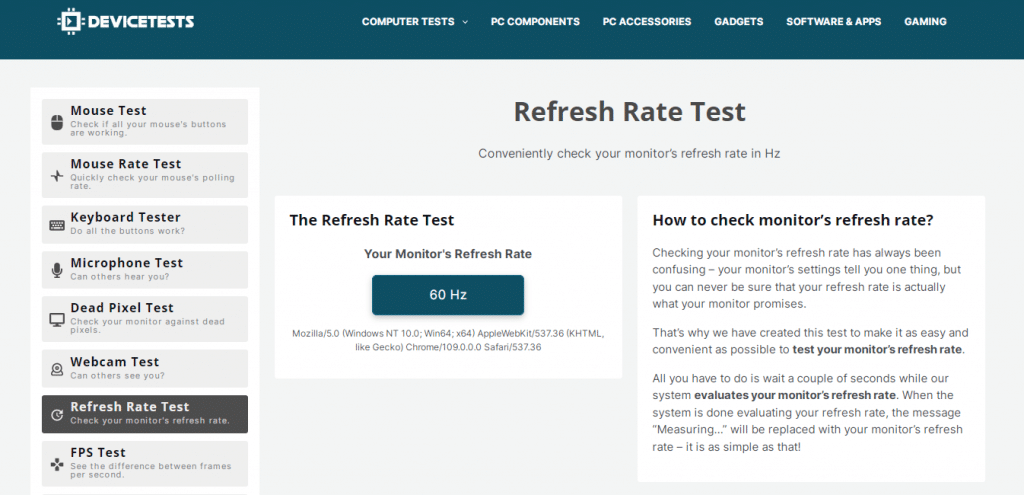
The device Test online tool is highly recommended to measure your monitor’s refresh rate. Once you access the system, it automatically checks your monitor’s refresh rate in Hz. The result you get is the “number of times per second” your monitor can update pictures on the screen.
A higher refresh rate means smoother visuals. Most monitors have refresh rates ranging from 60Hz, 75Hz, 120Hz, 144Hz, and 240Hz. Therefore, you can use Device Tests to check how powerful your monitor’s visuals are; for gaming or video editing purposes.
7. FPS Test
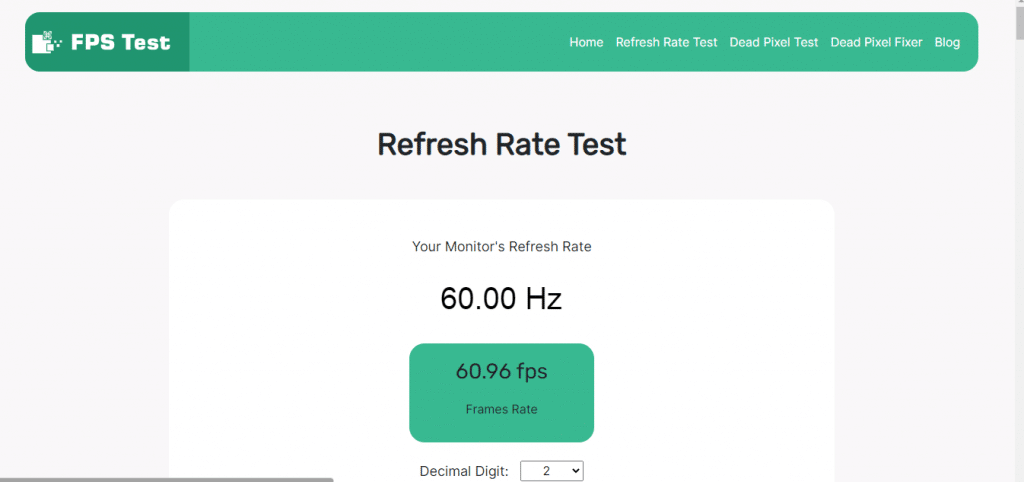
Another recommended tool for checking the monitor's refresh rate is FPS Test. Once you access the site, it automatically checks your monitors' refresh rate and frames rate in real-time. You get the results in decimal digits. If your monitor has a higher refresh rate, then it will receive more frames per second. Therefore, you can determine how strong your device is in real-time.
This tool allows users to easily check their monitor or screen's refresh rate, providing a simple and straightforward way to optimize their viewing experience. Users can access the test for free on the website and get their results instantly.
How to Set the Refresh Rate in Windows 10
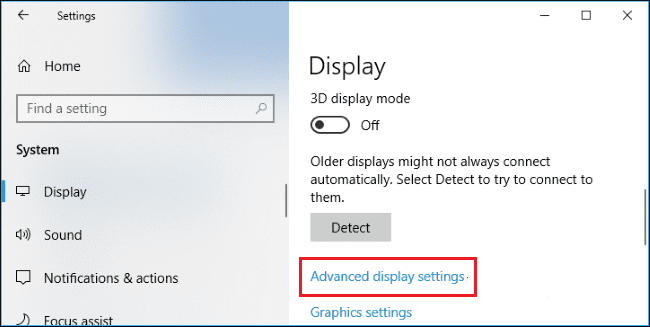
- Right-click on the desktop and select Display settings. Alternatively, you can press the Windows key to enter display settings.
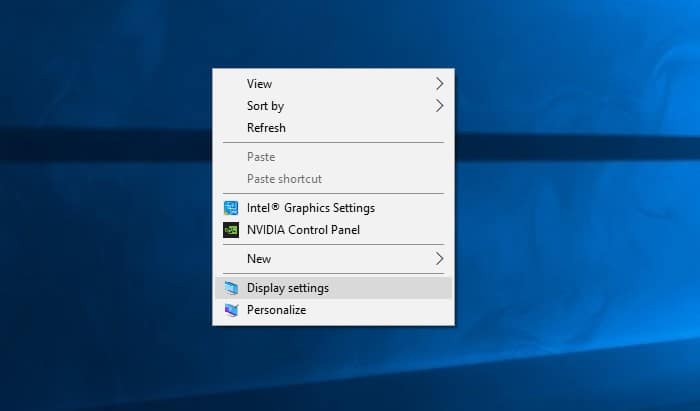
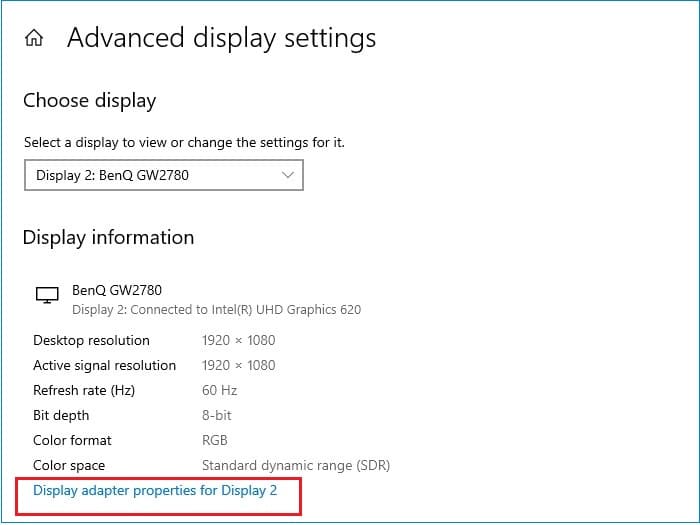
- Select the “Advanced Display Settings” option to see your monitor’s current refresh rate.
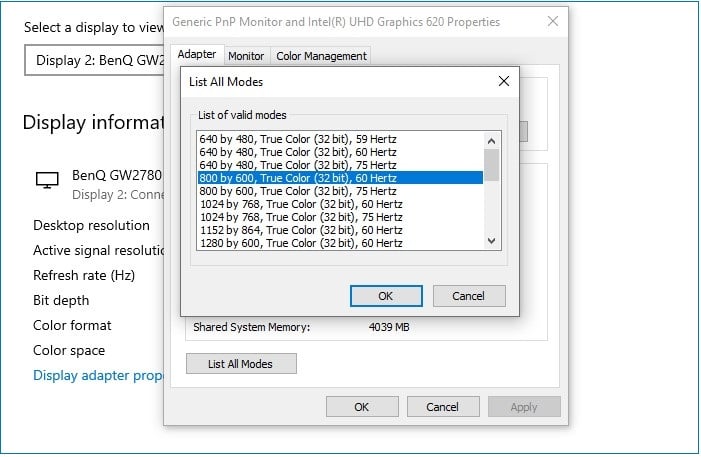
- Tap on the display adapter properties below. Lower the TAB in the adapter and click “List all patterns”.
- Select the one you like and click on OK to return to the new refresh rate.
How to Change The Refresh Rate On Mac
It is also possible to change the Refresh Rate on Mac. In some instances, you might need the refresh rate to align with the frame rate of a video you are watching or editing on your Mac.
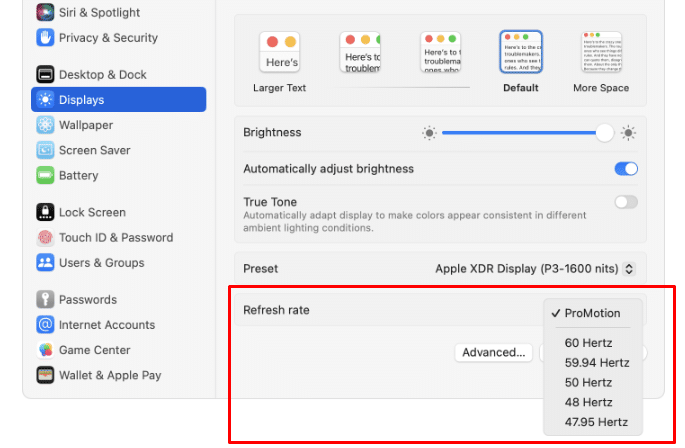
You can change the refresh rate to be: 60Hz, 59.94Hz, 50Hz, 48Hz, and 47.95Hz. When adjusting the refresh rate, choose one that divides evenly into the frame rate. Here are steps you can take to make that possible:
Step 1: Access the Apple Menu. Select the “System Settings/System Preferences” option.
Step 2: On the left menu bar, select the “Displays” option.
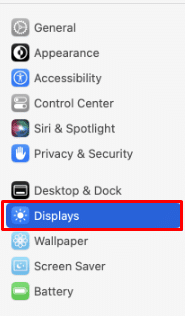
Step 3: On the right screen, under the refresh rate menu choose a suitable refresh rate that will align with the frames per second.
Step 4: That’s it.
Once you are done with the specific tasks, return the refresh rate to default.
How to increase the refresh rate of the Monitor
Increasing the refresh rate of your monitor is not that complex. You can use the Custom Resolution Utility (CRU), Nvidia Control Panel, or Radeon software by AMD.
When you overclock your monitor, you push the panel past its refresh rate. Your monitor’s refresh rate determines how many times it refreshes an image in a second.
1. Custom Resolution Utility (CRU)
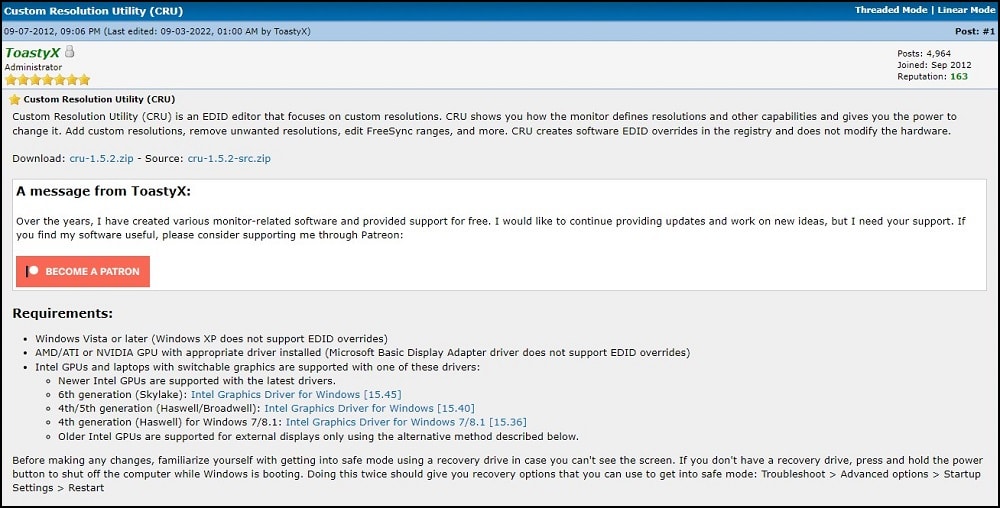
You can use the custom resolution utility from ToastyX to increase the refresh rate of your monitor. It works similarly the same as Nvidia and AMD Radeon software.
The Custom resolution utility is a free EDID editor that makes it easy to change resolution and other attributes in the computer. It even lets you override the registry settings and make changes directly to the driver configuration.
2. Nvidia Control Panel
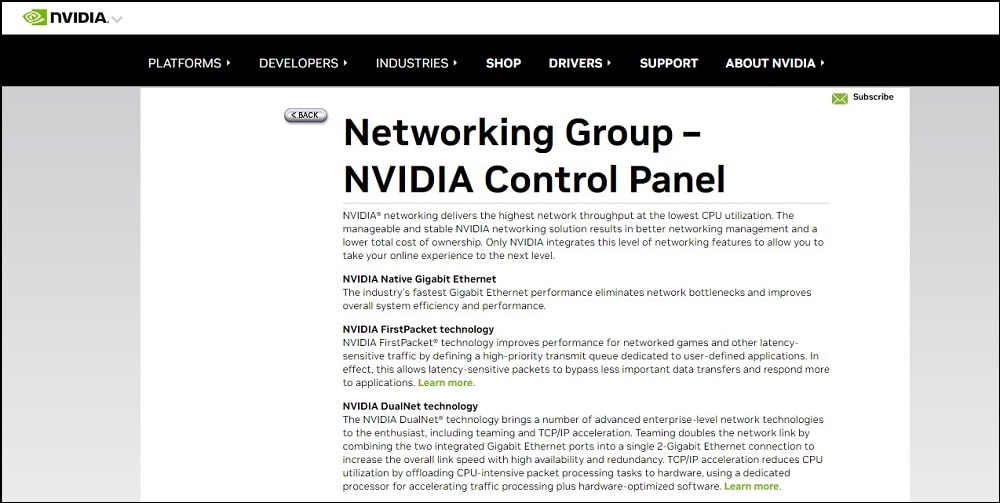
You can also use the Nvidia graphics card to set custom resolutions and refresh rates. Before you use it, ensure all your drivers are up-to-date. The control panel provides control of the NVIDIA graphics driver settings and utilities.
3. Radeon Software
Before using the Radeon software, all your computer drivers must be up-to-date. Install the AMD Radeon software and proceed to change the refresh rate.
Frequently asked questions
1. Is the screen refresh rate the same as a game’s FPS?
The refresh rate of the screen is the number of frames per second displayed by the monitor itself, while the game frame is the number of frames per second produced by the graphics card.
In other words, if the screen refresh rate is not enough, it will not be able to fully display the video effect of the graphics card. At this time, you need to turn on VSync to keep the frame output of the graphics card synchronized with the refresh of the display.
2. Where are computer screens with high refresh rates used?
Games, video special effect production, watching, and much more.
3. Is it safe to use online tools to test monitor refresh rate?
Oh, yes! Online tools for testing monitor refresh rate are safe and you can use them as frequently as possible. These tools work just as you would open other websites. You don't install any software on your computer or give the tool any special access to your computer.
4. What is a good monitor refresh rate for beginner gamers?
Well, 75HZ is a reasonably good monitor refresh rate for beginners in the gaming industry. It’s a great refresh rate when playing simple games such as racing and shooting games. However, the higher the monitor refresh rate the better.
Conclusion
It is therefore evident that monitors or display screens have some tasks that they perform without the human user seeing. The next time you will be watching a movie or animation, try and be keen on the resolutions. It is easy to check your monitor's refresh rate on Windows 10 and other operating systems.
