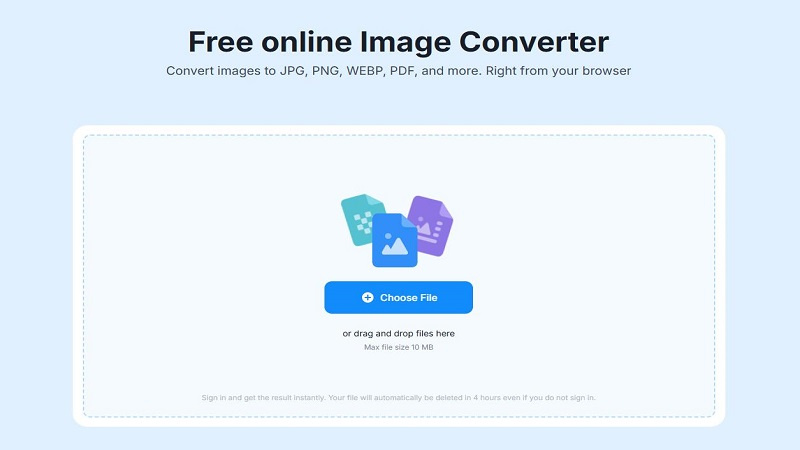
Converting images from PNG to JPG for free is not a difficult or complicated task. From business owners to students and employees or even in the industrial line everyone who uses a PC or laptop fulfills their needs. PNG and JPG, both we use. But the question is why do we need to convert PNG to JPG?
In this article, we will learn how to convert PNG to JPG by using offline or online methods, as well as what free online image converter we can use easily without investing money.
Why Do We Need To Convert PNG to JPG?
Converting images to JPG from PNG is becoming now all PC users need. PNG is best in quality as compared to JPG. If we talk about transparency, PNG provides us better results but they usually show in large sizes.
But PNG is best for those who are looking at smaller size images and files and want to save space. PNG is suitable for email attachments, website uploads, and it is space saving because of its smaller size.
Step by Step Guide to Convert PNG to JPG for Free
There are different ways to convert PNG to JPG online or offline. Let’s have a look at each guide.
Convert on Desktop (Offline/No Internet Require)
- Open your PNG image in paint, then click on the option File > Save as > JPEG picture.
- Another option is to open windows (photo app), open your image, go to the menu bar, click on three dots, choose save as JPG.
- The one most useful option is Mac (Preview), you can open your picture in it, now go to the options, File > Export, and choose JPEG as the format.
Convert Free Online By Using Online Converters
If you don’t want any offline or desktop apps then online converters are the best options.
Canva:
Canva is a free online image converter. It is easy to use, open Canva in any browser, upload your PNG image here, it takes a few seconds to upload, when uploaded, go to your share button which will show in the top side bar menu. Click here, and then here you will see the option download image to, select JPG and click on download. In a few seconds your PNG image will be downloaded in JPG.
Adobe Express:
Same like Canva, Adobe express will also take a few seconds or a minute to convert your file. Simply open the Adobe express, upload your PNG, it will convert automatically, now you can easily download it in JPG.
CloudConvert
It is an online file converter, which converts your files up to 100MB. Open https://cloudconvert.com/png-converter, simply go to the option > select files, click here, upload your image, now inside click on > convert to option, here you will have different options, choose JPG, and click on convert. Now it will tell you to wait a little bit, after processing, it will finish. Now you can simply click on the download and your image is ready to use.
These above tools are reliable and free of cost. You can also use many other tools by searching on Google. It depends on your choice, but recommended as described above.
Troubleshooting Tips
After converting images mostly they showed some issues. To solve all these problems, here are trouble shooting tips for you, simply follow them:
- If the image looks bluer, simply go into settings during the convert process and increase quality.
- Large files? If size is still large then try lowering JPG slightly in setting.
- If it takes time to download, you must check if your internet connection is stable.
Conclusion
Converting PNG to JPG is simple and easy for all of us, especially for PC users. Converting these files to each other is a quick process whether you are using an offline method or online.
