Learn how to repair PDF files that won’t open using proven methods and reliable tools to restore access without losing data.
Encountering a PDF that won't open can derail your workday, especially when you need it most. These issues often stem from common errors, like incomplete downloads. With the advancement of AI, anyone can repair their PDF files using the right methods.
This article covers everything from basic fixes to leveraging efficient file repair software. So, if you are also exploring ways to repair files, you are in the right place.
Part 1. Spotting a Broken PDF: Signs Your File Needs Repair
Before you dive into the fixes to repair PDF files, let’s first go through the early signs that indicate corruption:
- Crashed PDF Reader: A crashed PDF reader demonstrates severe corruption, as it freezes when accessed.
- Wrong File Formatting: One of the common indications is that file elements get displaced from the file.
- Partial Content Load: When opening a PDF file, users notice that some sections are incomplete or contain unnecessary blank pages.
- Unexpected File Properties: Your file properties get changed abnormally, such as your file size decreases even though you have not deleted anything.
Part 2. Why Your PDF Refuses to Open: 4 File Glitches Explained
Now, explore the following section to learn the major causes leading to the “PDF not opening” error:
- Network Interruption: Poor internet connection can lead to incomplete file downloads, leading to “file damaged” errors.
- Power Failure: Sometimes devices shut down during a power outage, causing mismatched headers or incomplete page streams to be downloaded.
- Malware: Malicious code alters PDF structures, causing the file to stop opening and crash PDF viewers.
- Software Incompatibility: Outdated readers or mismatched PDF versions can render the file unreadable despite intact data.
Part 3. Fix PDFs Safely: Start With Repairit File Repair Before Trying Others
A lawyer is working on a high-profile case, and he has saved all essential data as a PDF. On the hearing day, when trying to open the PDF, it displayed an error and became inaccessible. Instead of panicking, we recommend using Repairit to fix unlimited files. This efficient file repair software scans the file in depth and reconstructs missing file parts.
Being a beginner-friendly tool, users simply insert their corrupted files to start the repair procedure. It lets your fix files get corrupted due to any scenario, including “Garbled” and “Unreadable” files. Moreover, you can access this tool from both online and offline on any major operating system.
Key Features
- Supported File Formats:Repairit provides efficient support to all file formats, including PDF, Word, and Archives.
- Lossless Repair: Its advanced technology preserves the file's original formatting while repairing it.
- Preview Feature: This tool lets you preview the repaired outcome to ensure the accuracy of all the elements.
Extensive Guide on How to Repair PDF Files with Repairit
Upon hearing the outstanding features of Repairit, let’s dive into its detailed guide to repair PDF files:
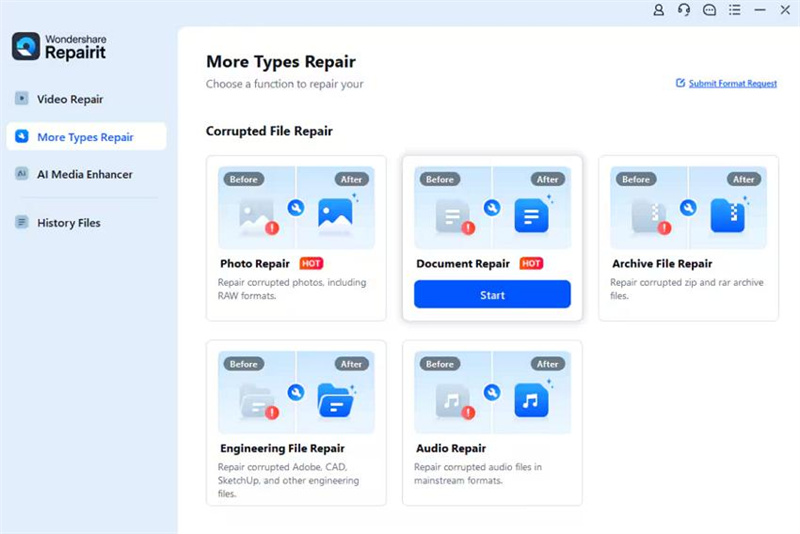
Step 1. Access More types Repair to Load Corrupted Files
Initiate by choosing the “More Type Repair” option in the side panel and selecting the “Document Repair” option to insert corrupted files.
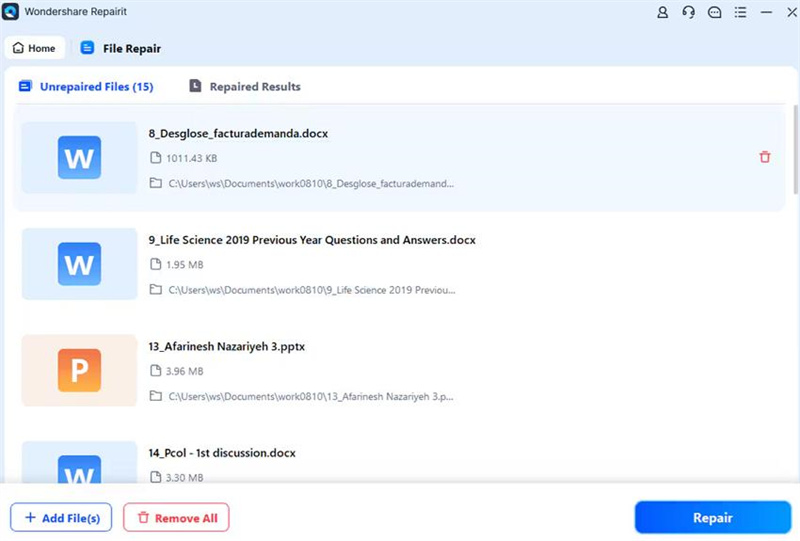
Step 2. Execute the File Repair Procedure
After inserting the corrupted files, click the “Repair” button to start the repair process immediately.
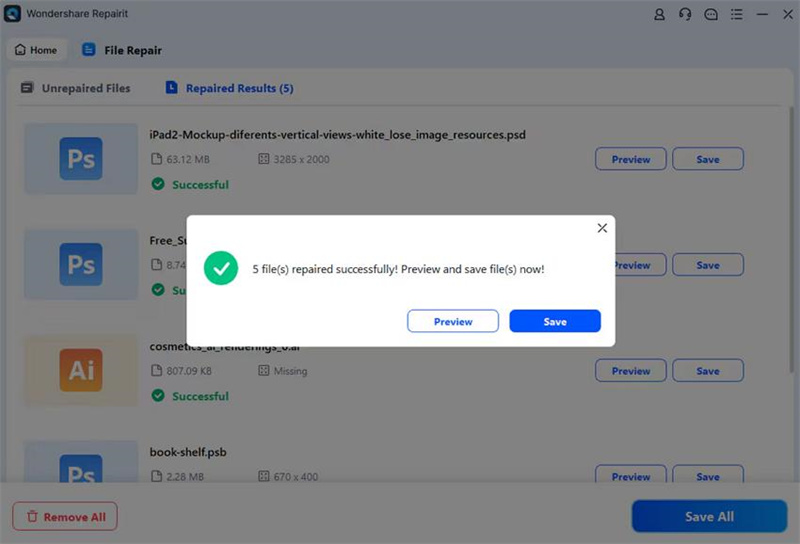
Step 3. Review and Export the Repaired PDF File
Lastly, click on the “Preview” button to examine the file and choose the “Save” button to render the fixed file to the device.
PDF Repair Mistakes to Avoid: Save Time and Data
While attempting to repair PDF files, avoid the following mistakes to get better outcomes:
- Untrusted Tools: Users upload their sensitive files to online platforms, which can risk their data security.
- Overlooked Password Protection: Forgetting to enter file passwords in repair software can terminate the process.
- Ignoring File Backups: Editing originals without copies can overwrite recoverable data, making them difficult to repair.
- Forced Edits: Instead of using reliable repair software, users resort to inappropriate DIY methods, leading to further corruption.
Part 4. PDF Still Won’t Open? 6 Solutions After Successful Repair
Besides using file repair software, here we have listed some quick solutions to fix your files:
1. Try Another PDF Viewer
If you are facing a PDF opening error, try using another PDF viewer to access the PDF. Sometimes, the file itself is accurate, and the main error is in the viewer. This method is effective because repaired PDFs often retain quirks that Adobe Reader rejects, whereas lighter alternatives handle them smoothly. Furthermore, it saves your time using the repair software to fix the correct file.
2. Update Or Repair Your PDF Reader
In case the PDF reader is the main issue, then update your PDF viewer to resolve errors. This error can occur due to outdated software, so updating it often resolves it without any data loss. Most of the time, it instantly fixes the 30-50% “PDF not opening” error. Moreover, it will enable faster downloads, lower memory usage, and improved file annotation, so explore the following guide:
Instructions. As you enter the “Adobe Acrobat” software, hit the “Menu” and select the “Help” option. Next, choose the “Check for Updates” option to start the update if any new updates are available.
3. Check If the PDF Is Corrupted or Incomplete
This method instantly pinpoints if the PDF file is incomplete, saving you from confusion. Using this method, you simply check its properties to check its data. Being easily used in File Explorer, you don't require to install any third-party file repair software. As you are aware of its features, have a look at its guide below:
Step 1: Upon entering the File Explorer, right-click the PDF and choose the “Properties” option.
Step 2. Here, click on the “Details” tab and check the file size. In case the file size is below 1KB, it indicates incompleteness.
4. Fix File Association/Default App
To fix the “PDF not opening” error, check the default app association in File Explorer. By associating the correct apps, it mostly resolves file-handling issues. This method is quick and easily reversible when needed to ensure easier access. Now, if you want to use this method, then go ahead and read the guide below:
Step 1. First, navigate to the desired PDF, right-click it, and select the “Choose Another App” option from the pop-up menu.
Step 2. Following this, choose the “Adobe Acrobat” software or any appropriate PDF reader and hit the “Always” button to save the desired option as the default.
5. Adjust Browser or Security Settings
Users can opt for this method by simply disabling the “Enable Protected Mode at Startup” option. It is beneficial for fixing errors that block issues like “PDF not opening.” Moreover, temporarily disabling this option grants full access while preserving core protections. Overall, this method is considered easy-to-use by both beginners and professionals, so let’s dive into its guide:
Step 1. With the tool running, click on the “Menu” option and choose the “Preferences” from the menu list.
Step 2. Here, choose the “Security (Enhanced)” option from the side panel. Next, disable the “Enable Protected Mode at Startup” option to jump to the next screen.
Step 3. At the end, hit the “Yes” button to save the changes to the Adobe Acrobat Reader.
6. Reinstall The PDF Reader
Reinstalling the PDF reader is an efficient way to repair PDF files instantly. Reinstalling the PDF reader fixes the DLL, registry hives, or plugin conflicts that cause PDF not opening errors. Furthermore, it downloads the latest OS, and there is no data loss with this method if Adobe Acrobat Cloud is enabled. After reviewing the features, follow these steps to use this method effectively:
Step 1. Go to the “Settings” and choose the “Apps” option from the main homepage.
Step 2. Here, select the PDF reader app and choose “Uninstall” to delete it from the PC.
Step 3. Now, go to the Microsoft Store or associated website and choose the “Install” button to reinstall it back to your PC.
Conclusion
In conclusion, repairing a PDF file has become much easier with the advancement of AI. This article covers various efficient methods for repairing corrupted files, along with detailed guides. In case these methods fail, then we recommend using Repairit file repair software, which provides batch processing to fix multiple files.
