
Wondering how you can fix broken registry items in Windows 10? Then consider yourself lucky because this guide covers all the methods and steps to help you fix corrupted or invalid registry entries. Read on for more details.
What’s Windows Registry?
Windows registry can be defined at the main database of the Operating system. It stores the parameters that control Windows startup, hardware, and software functions.
The registry consists of two basic elements:
- Keys (primary keys, child keys)
- Values
These elements are used by the operating system to launch programs, install new software, and change hardware, among a host of other functions.
What Causes Broken Registry Items?
There are many causes of broken registry items. Here are the 3 most common ones:
1. Registry fragmentation
This is often associated with duplicate keys. Registry fragments often result from software uninstallations or upgrades.
2. System shutdown errors
Unexpected PC shutdowns or crashes may interfere with the saving of registry copies, like is normally the case during normal shutdowns. That can lead to breaks in the registry.
3. Malware and viruses
Malware and viruses have a tendency to modify the system’s registry. This can compromise the operations of your PC.
A corrupted registry can severely impact the overall performance of your computer. Luckily, it’s possible to tweak registry entries. And there are many ways to help you do that. Here are some methods you can use to fix broken registry items in Windows 10.
Method 1: Restore Registry
This method entails reverting the system’s registry back to a previous restore point that had no broken items. It’s recommended to always enable the System Restore feature on your PC. That way, you allow Windows to automate the creation of restore points whenever you make any significant system changes such as software or driver installation.
That comes in handy, especially during system restore to fix Windows vulnerabilities. That being said, here are the steps to help you restore the system registry on your PC.
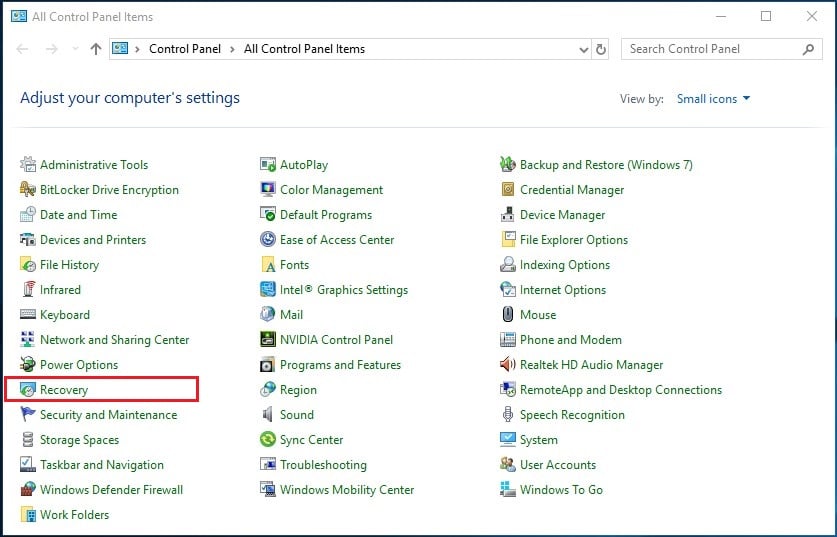
Step 1: Click on the start button then type control panel the under All control panel items choose Recovery.
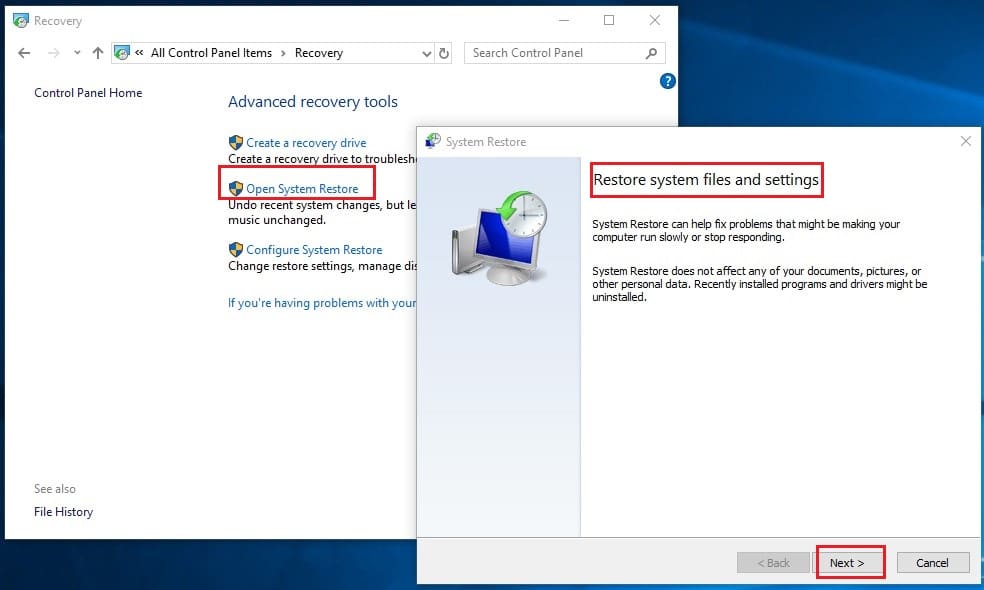
Step 2: Next, under Advanced recovery tools click on open system restore then head over to Restore system files and settings the click Next to proceed.
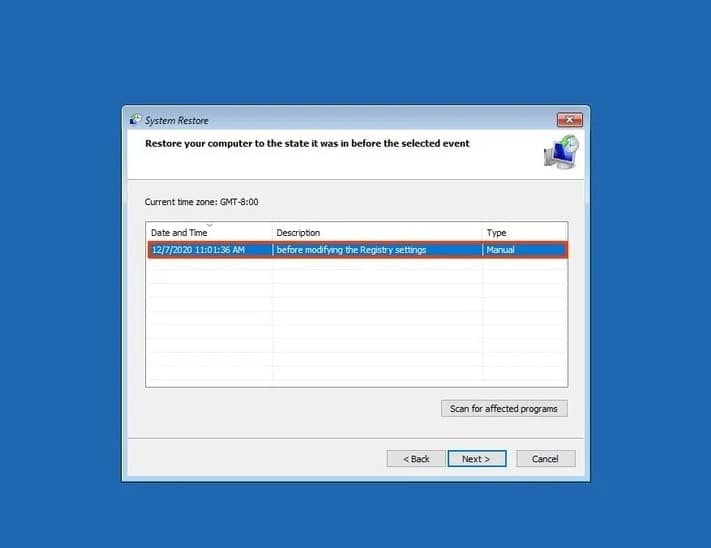
Step 3: Choose your preferred restore point then choose Scan for affected programs. That will check the registry for any files that have been compromised.
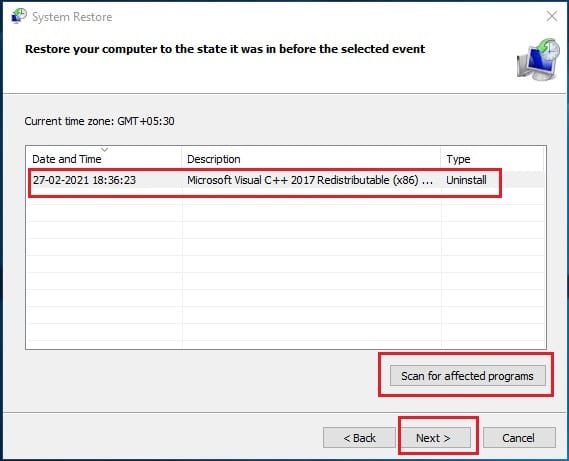
Step 4: When the scan is done, click Next. You’ll then be prompted to confirm your restore point then click Finish.
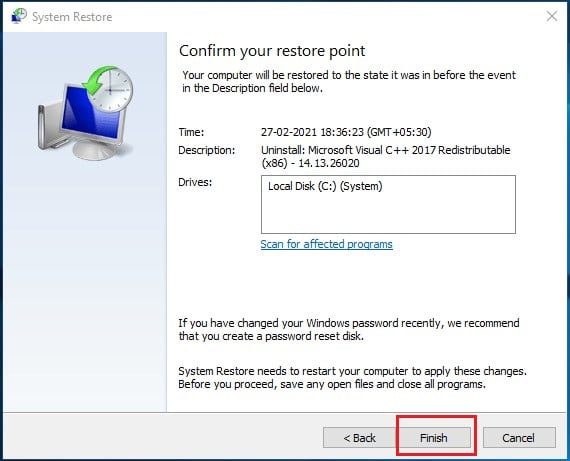
The system’s registry will then be restored. The process often takes a few minutes after which the PC will restart in order to save the changes. That’s all you need to do to have the system’s registry restored on your PC.
Method 2: Reset Windows System
If you’re still seeing error alerts or reduced system performance after restoring the system registry, then maybe resetting the Windows system can fix the problem.
It's important to backup all your files and folders before this operation; it involves reinstalling Windows and might mean losing some data. Here are the steps to follow when you want to reset Windows system:
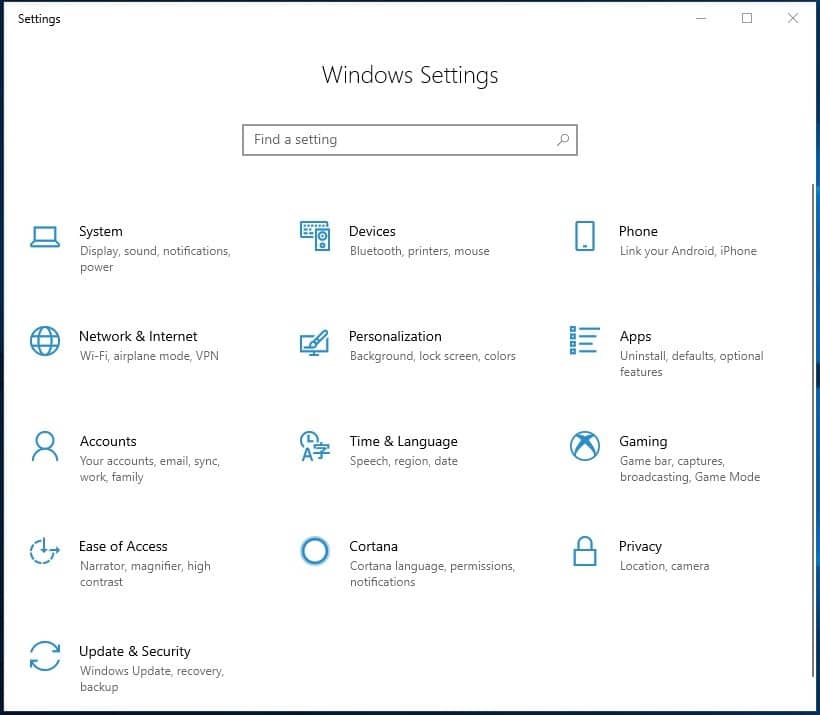
Step 1: Click the start button or press Windows key then search Settings. A list of options will appear. Select the settings app icon; the one that appears top of the list.
That will open the Settings window with a number of options to choose from.
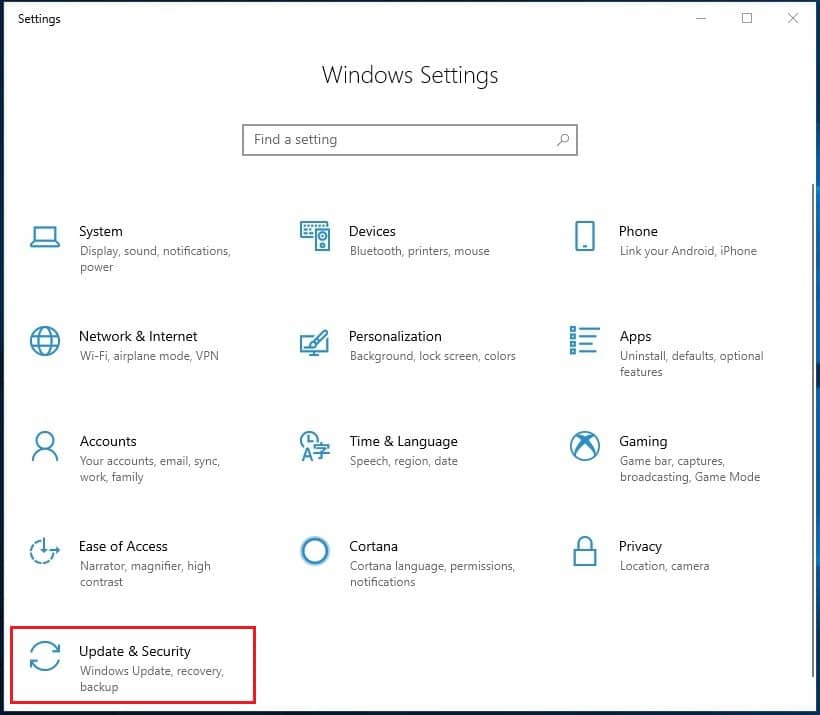
Step 2: Select Update & Security then on the next screen choose Recovery from the options available on the left hand side of the window.
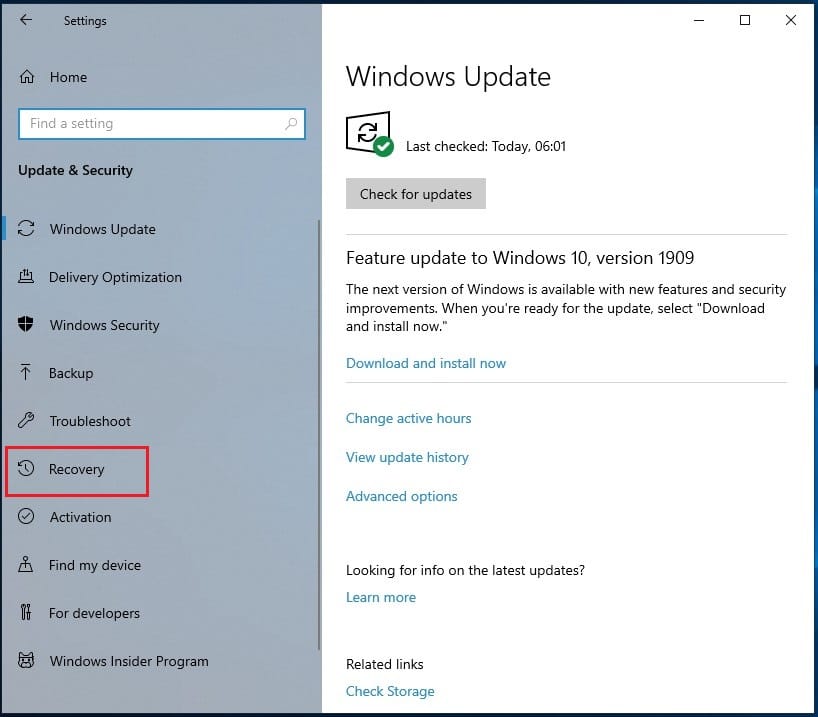
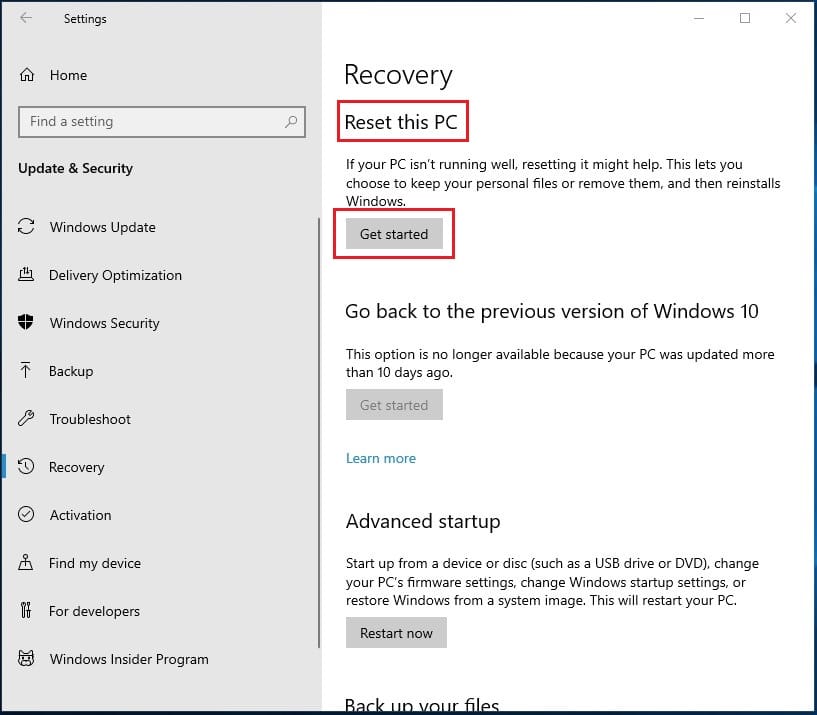
Step 3: Next, under Reset this PC section choose Get Started. These two options will then appear: i). Keep my files ii). Remove everything.
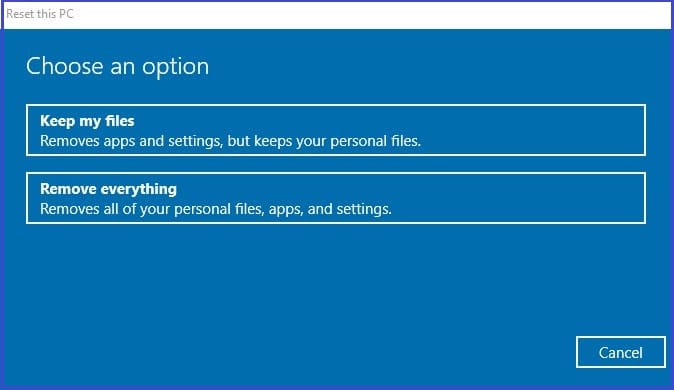
Tip! Remember to backup all important files and folders before you proceed.
Step 4: Assuming you’ve backed up everything, choose Remove Everything so that the reset begins on a clean slate. If you haven’t managed to back up everything yet, choose keep my files option.
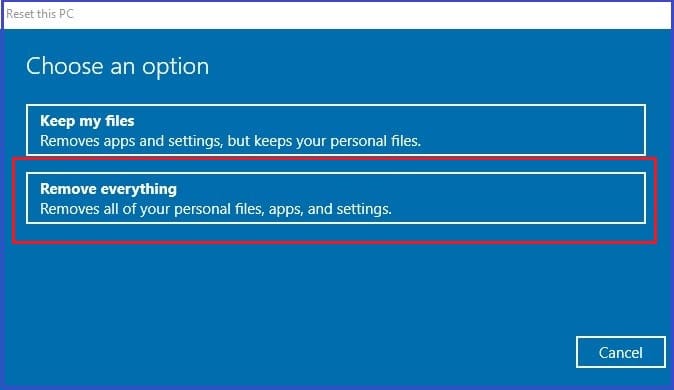
For the sake of this tutorial, we’ll select Remove everything. Next, a window will appear with the message Do you want to clean the drives too?
Two options will appear: i). Just remove my files ii). Remove files and clean the drive.
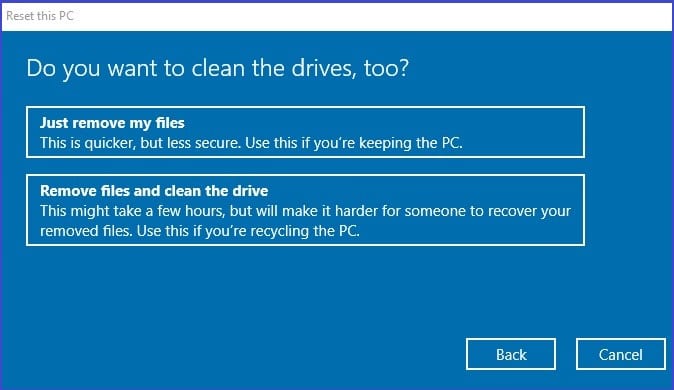
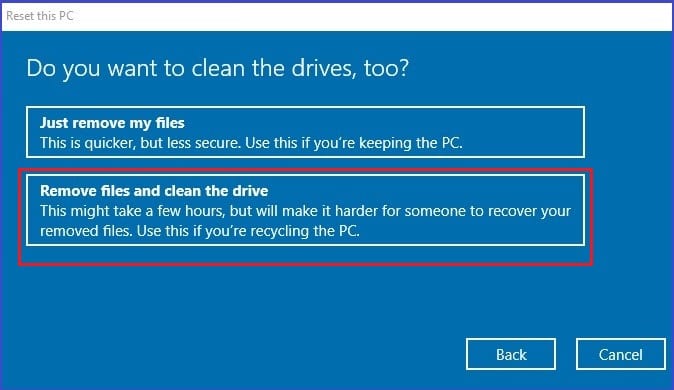
Step 5: Choose the option that matches your selection in step 4 above. For this guide, we’ll choose Remove files and clean the drive.
Step 6: A new window will appear with the alert Ready to reset this PC. Click Reset to commence the process of resetting the Windows system.
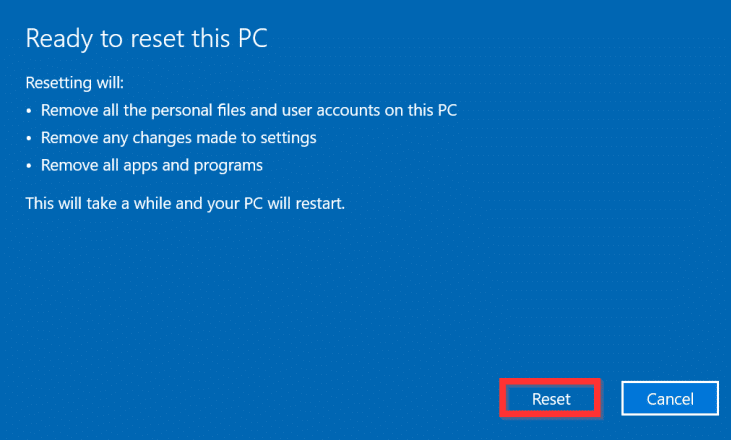
The process will last a couple of minutes, so be patient till it’s complete.
Method 3: Using Command Prompt
This method involves making use of the System File Checker utility to search and repair broken registry files. And you do that in command Prompt. It's one of the simplest methods in our list. Here are the steps to help you go about it.
Step 1: Click on the start button or press Windows + R keys together then type cmd. The Command Prompt app will appear.
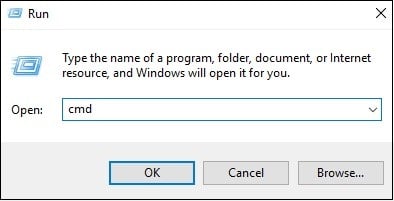
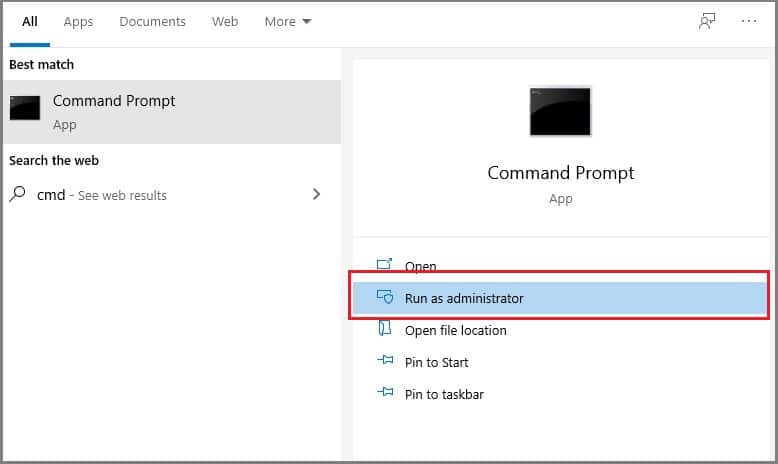
Step 2: Right click on the app icon then in the next popup window, choose Run as administrator. The command prompt screen will then appear.
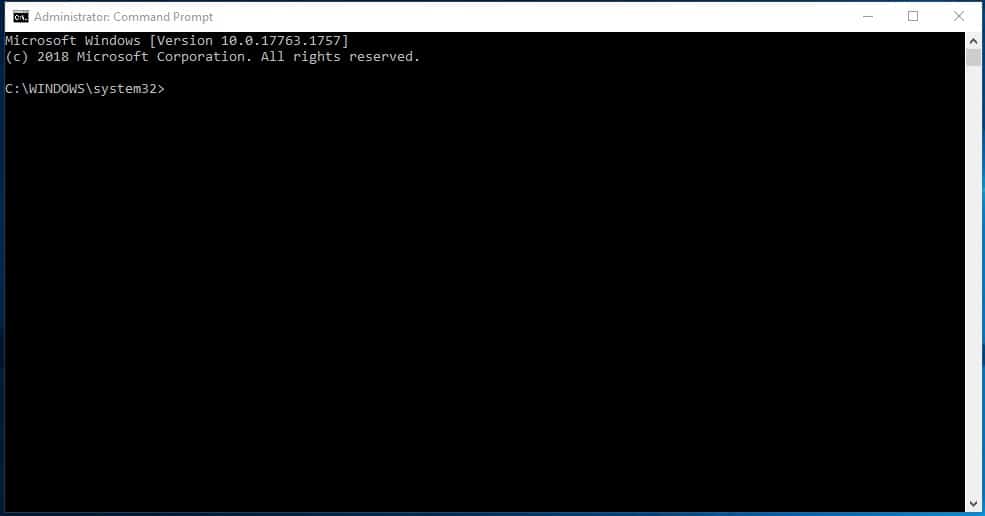
Step 3: On the command prompt screen, type sfc /scannow without the quotes then hit Enter.
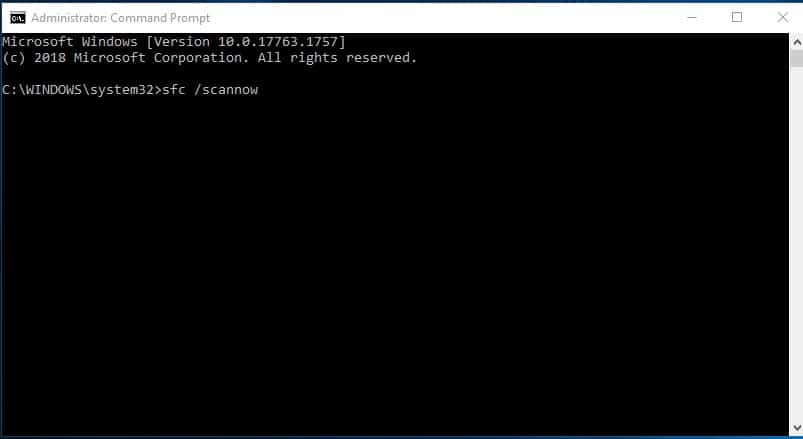
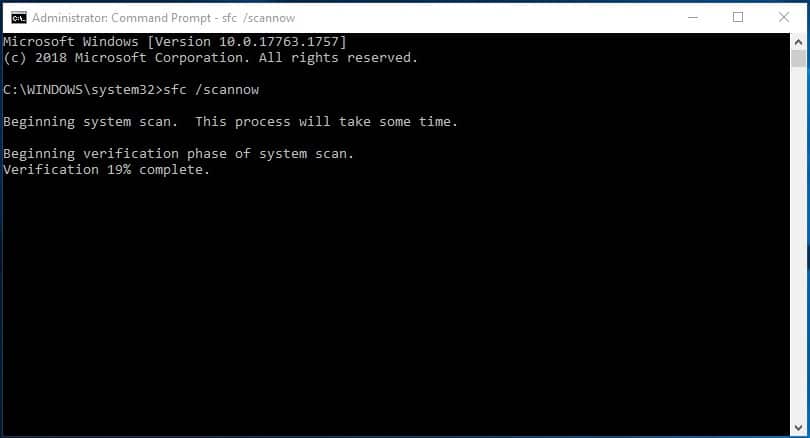
Step 4: Your system’s registry will then be scanned for file errors. The process often takes some time to complete. So, a little patience is in order.
Alternatively!
You can use the DISM command to restore the registry.
Here’s how…
Step 1: Run command prompt as administrator.
Step 2: Type in following command on the command prompt screen then hit Enter.
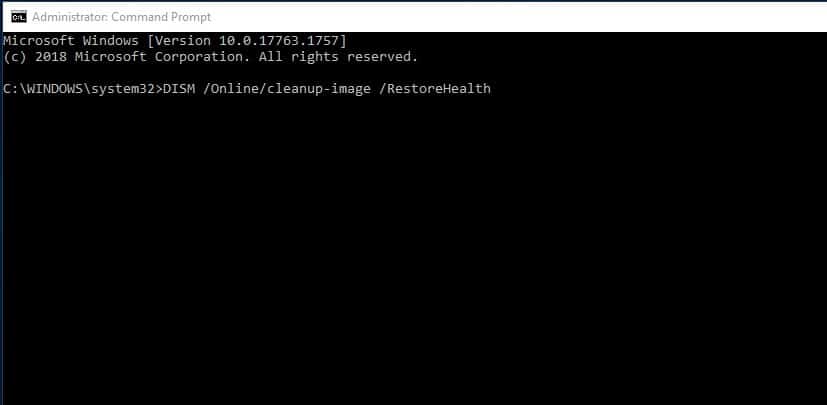
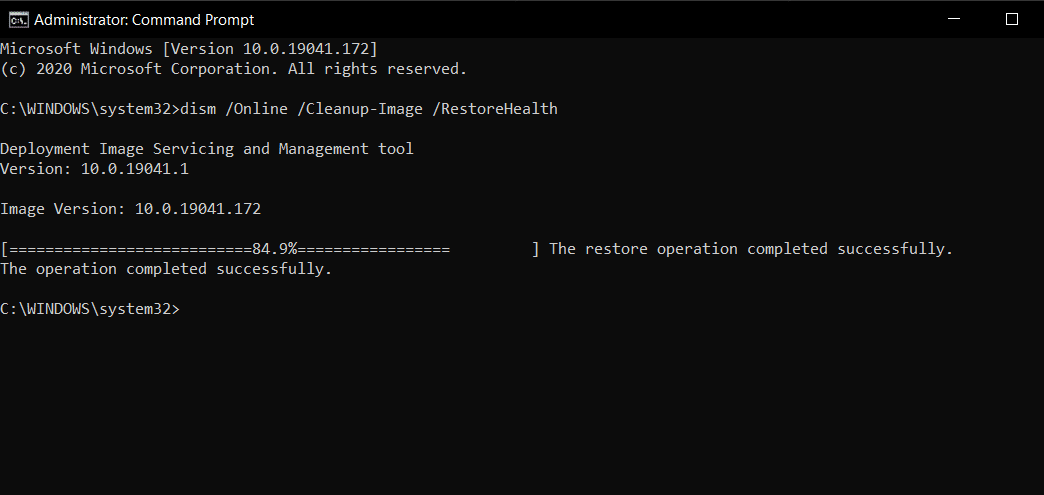
Step 3: Now, wait a few minutes as the PC downloads the right configurations files and initiates automatic repair.
Method 4: Using a Third Party Registry Repair Software
There are many registry repair software, both free and premium, available online. These tools are also called registry cleaners and they’re purposely designed to fix registry errors. If you’ve issues using the other methods mentioned above, registry repair tools are a great option for you to get the job done.
1. Iolo System Mechanic
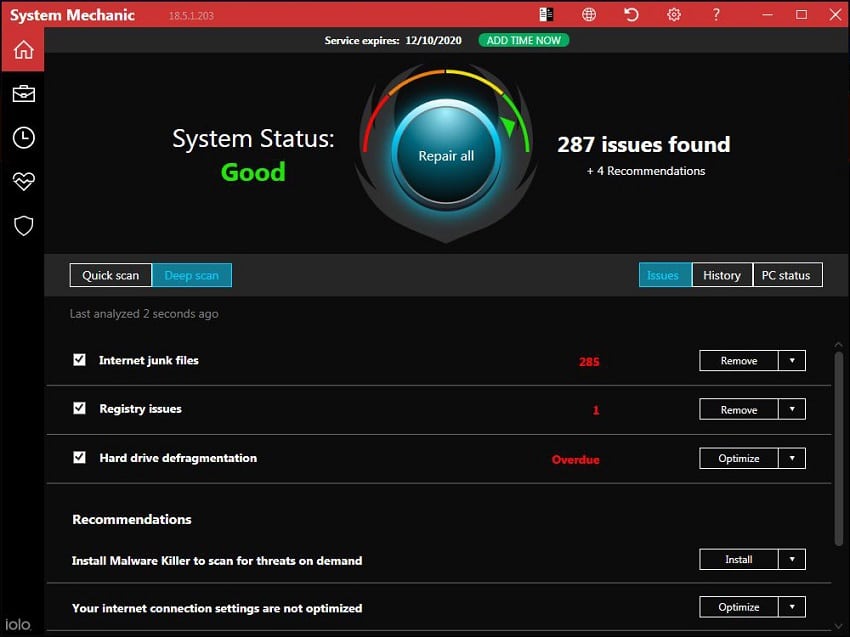
One of a few registry cleaners that also doubles as a booster and PC performance optimizer. The tool works in two main steps; automatic repair of registry problems & automatic repair of registry fragments. Here are the steps for using this registry repair tool:
Step 1: Launch the Iolo system mechanic then select Toolbox then head over to the All-in-one tools section.
Step 2: Next, Choose PC security then select Start. That will open a window for the Recommended actions that you can perform on your PC.
Step 3: select Repair system registry then clock Next.
Step4: Wait for a few minutes as the Iolo System Mechanic fixes all the broken registry items on your computer.
2. Iobit Advanced SystemCare
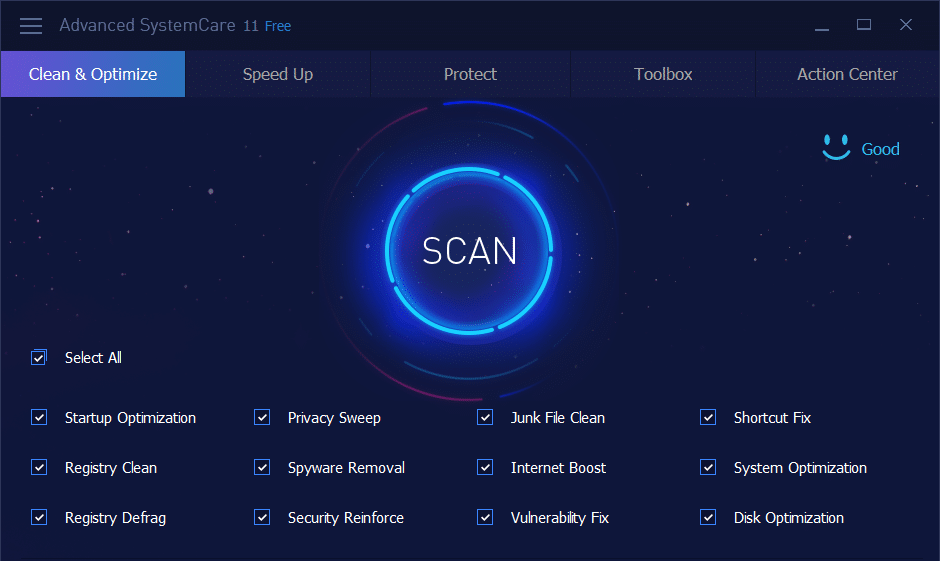
Iobit Advanced SystemCare is an all-in-one easy to use registry cleaner. It follows a one click approach to execute functions precisely. Follow these steps to use this tool to clean PC registry vulnerabilities.
Step 1: Launch the Iobit Advanced SystemCare software.
Step 2: Head over to the Customize advanced SystemCare section on the left pane of the user interface.
Step 3: Click Quick settings > Clean and optimize > Registry clean. On the right section of the window, under General settings, check the boxes depending on your preference then click OK.
Step 4: Wait a few minutes as the tool cleans the system registry.
3. Tweaking Windows Repair

Follow these steps to use this tool.
Step 1: Download and install this registry cleaner then launch it.
Step 2: Do system compatibility check.
Step 3: Create a restore point and a registry backup.
Step 4: Initiate the repair process. Check or uncheck the options to make the repair more targeted.
Step 5: The repair process will last a couple of minutes. Wait till it’s complete.
Method 5: Recover or Reinstall Windows
Another way to fix broken registry items is by recovering Windows. And the way to do that? Follow these steps.
Step 1: Power on your PC and hit F11 as soon as the boot process begins to access Advanced startup options. Note that this method works only if you have a restore point.
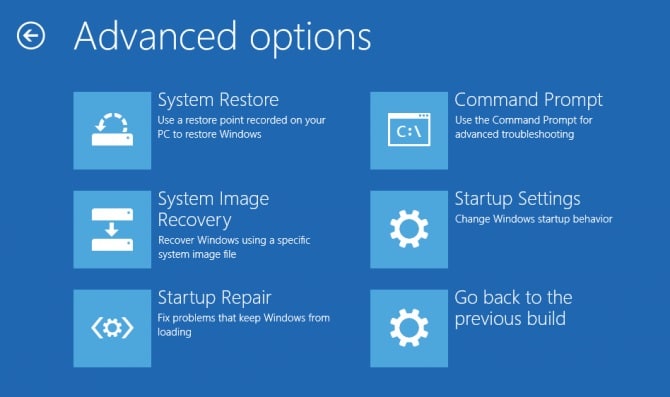
Step 2: Select System Restore to reboot the computer.
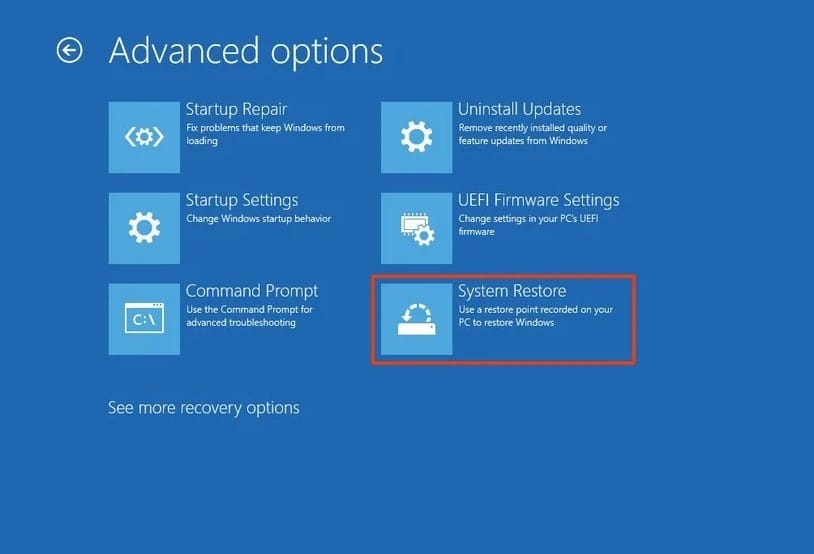
Step 3: Next, choose your Username then enter Password.
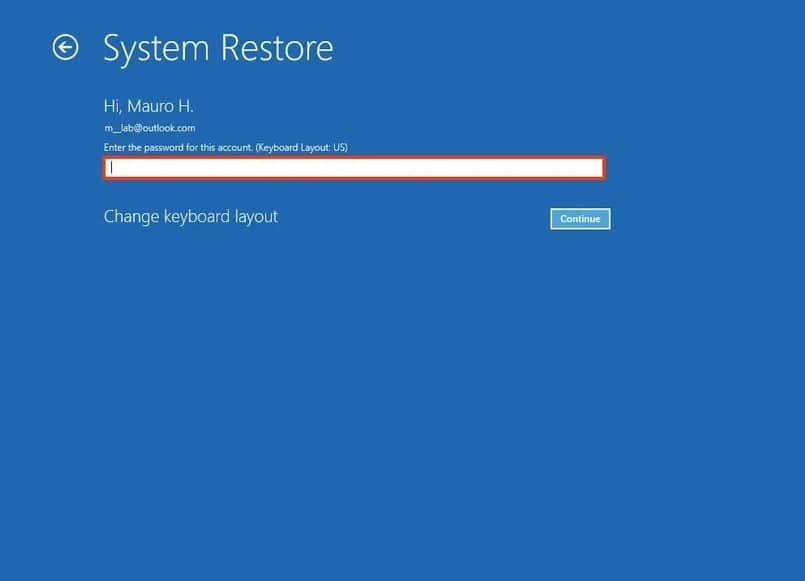
Step 4: A menu will then appear with a list of restore points available on your PC. Choose your preferred restore point. Proceed as prompted till the process of recovering Windows is complete.
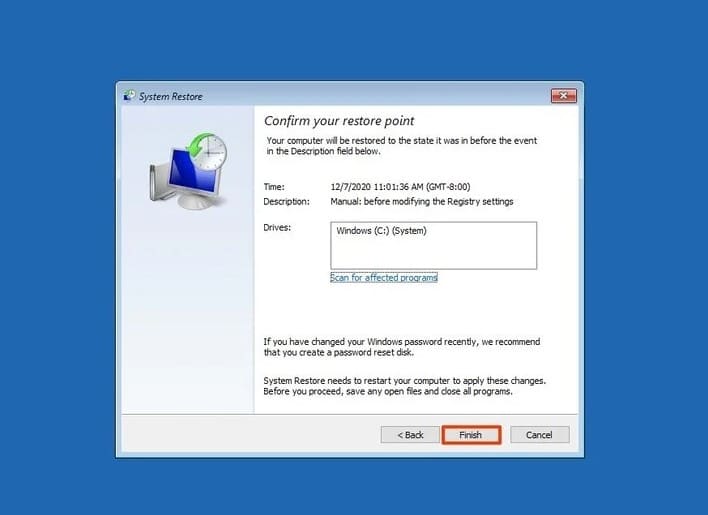
If that didn’t work, then consider reinstalling Windows from scratch. That will, without a doubt, fix all broken registry items by reverting everything to factory settings.
1. How do I clean up an invalid registry?
Press Windows + R keys then type regedit and then hit Enter. Locate the following key:
Next, identify the key to be removed by locating the key name created by the program. Delete the selected registry key and its values. Remember not to delete the entire uninstall key.
2. How do I backup my registry?
Press Windows + R keys then type regedit and then press Enter. That will open the system’s Registry. Next, locate the keys or subkeys you wish to backup. Next, click File then Export to access the Export Registry File dialog box. Choose the backup location then under File Name type the name of the file that you wish to backup then click Save. That’s all!
