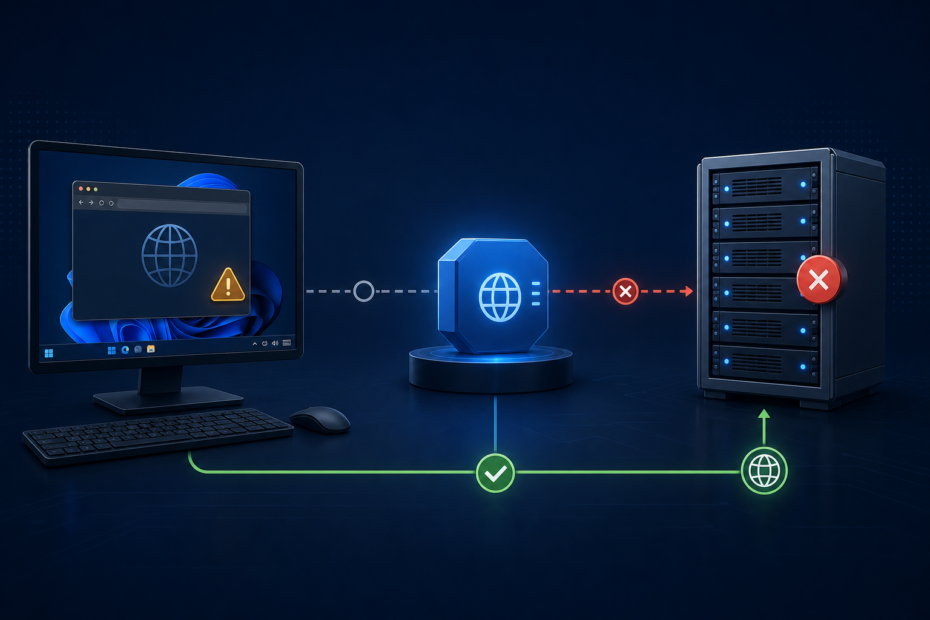
A message that says Proxy Error does not tell you, by itself, where the failure lives. It may mean that your browser cannot reach the proxy configured on your Windows PC. It may mean that a proxy service you deliberately configured is rejecting or not answering. Or it may be a website returning 502 Bad Gateway because its own gateway cannot get a valid response from an upstream service.
The safest first move is not to reset every network setting. Capture the exact wording, test one ordinary site and one affected site, then choose the branch below. That small separation prevents a common bad fix: disabling a required work proxy because one website is having a server-side problem.
Start with the error text, not a random fix
| What you see | Most useful next test | Do not do first | Likely owner |
|---|---|---|---|
ERR_PROXY_CONNECTION_FAILED, “Unable to connect to the proxy server,” or browsers fail before a page loads | Check whether a proxy, setup script, or automatic detection is configured in Windows; compare with a known-good network. | Do not delete a company PAC URL or disable a managed proxy without recording the old setting. | You, or workplace IT if the setting is managed. |
| You intentionally use a proxy and only that proxy path fails | Confirm the provider-supplied host, port, protocol, and authorization method; run a non-sensitive endpoint check. | Do not paste corporate credentials, browser profiles, or a private PAC URL into a public checker. | Proxy provider, account administrator, or your application configuration. |
One website shows 502 Bad Gateway or 504 Gateway Timeout, while other sites work | Try the same URL from another network or device; capture the URL, exact status, and time with timezone. | Do not repeatedly reset your PC proxy settings or change credentials for a site-side gateway failure. | The website owner, host, CDN, or reverse-proxy administrator. |
These branches can overlap. A corporate VPN can apply separate proxy settings, and a website can be down at the same time that your computer has an old proxy script. The goal is not to diagnose every component in one click. It is to collect one piece of evidence that eliminates the wrong layer before you make a change.
Branch 1: the browser cannot reach the proxy configured on your PC
This branch fits a browser error that appears before a particular website has had a chance to respond. First check whether the same browser can open a few unrelated, well-known sites. If nothing opens and the browser names a proxy connection problem, the local configuration is a more useful place to look than the affected website.
On Windows 10 and Windows 11, Microsoft documents three normal proxy modes: automatic detection, a setup script, and manual server settings. Open Settings > Network & internet > Proxy and record what is enabled before changing it. The current Microsoft proxy-server guidance for Windows also notes that organizations may require a proxy and that VPN connections can have separate proxy settings.
Make a reversible local check
- Write down the enabled mode: automatic detection, setup script, or manual proxy.
- If a setup script is enabled, record only that it exists and its approved location. Do not post the script URL in a support forum if it reveals an internal hostname.
- If manual mode is enabled, compare the server name and port with the values supplied by your organization or proxy provider. A transposed port is a configuration error; guessing a replacement is not a fix.
- If the device is work-managed, ask IT whether the setting is delivered by policy, VPN, or a PAC file before turning it off.
- After one approved change, close and reopen the affected application and test the same two URLs. Keep the result: changed setting, old behavior, new behavior, and time.
A successful direct connection after turning off a personal manual proxy is useful evidence. It does not prove that turning off a managed proxy is safe. Some offices use a proxy for access control, filtering, or audit requirements; an employee should restore the original state and escalate rather than treating “works without proxy” as final permission.
Branch 2: you meant to use a proxy, but the endpoint itself is failing
When the proxy is intentional, separate “can I reach this endpoint?” from “can this endpoint reach every target site?” Start with the connection information your provider actually supplied: hostname or IP, port, protocol (for example HTTP or SOCKS), and the provider’s stated authentication or IP-allowlisting method. A host that accepts an HTTP proxy connection is not automatically a SOCKS endpoint, and an IP-allowlisted account will not behave like a username-and-password account.
Use a second network or a dedicated diagnostic page to test only non-sensitive connection details. You can check the endpoint separately with MyProxyChecker when your provider authorizes that use. Treat any result as connectivity evidence, not a privacy guarantee or a substitute for the provider’s support record. Never submit a workplace username, password, session cookie, PAC-script URL, or a customer’s proxy credentials to a third-party checker.
Compare the four values that cause most avoidable mistakes
- Host: use the exact hostname or address supplied for that pool or region. Do not substitute a dashboard URL for a proxy endpoint.
- Port: verify the port next to the protocol. A valid host with a wrong port can look like a refused connection.
- Protocol: configure the client for the endpoint type you bought or were given. Changing protocol at random can produce misleading errors.
- Authorization: determine whether the service expects credentials, a source-IP allowlist, or both. Do not publish secrets in a screenshot while asking for help.
If a non-sensitive check cannot reach the endpoint from two networks, preserve the result and contact the proxy provider. If it can reach the endpoint but your application still fails, compare your application’s proxy scheme, port, and authorization method against the provider’s documentation. That narrows the ticket from “proxy error” to an actionable mismatch.
Branch 3: a website shows 502 Bad Gateway or 504 Gateway Timeout
A 502 page is not automatically proof that your local proxy is wrong. In HTTP terms, a gateway or proxy produces a 502 when it receives an invalid response from an upstream server; a 504 is used when it does not receive a response in time. If only one site fails while unrelated sites load normally, treat the website path as a serious candidate.
Cloudflare’s current 502 and 504 troubleshooting guidance makes the same practical distinction for Cloudflare-proxied sites: determine whether the error came from the origin server or Cloudflare rather than assuming one cause. It lists origin-side errors as the most common class, while also documenting Cloudflare-side cases. That guidance is specific to Cloudflare; it does not mean every gateway error on the web has the same cause.
Give the site owner useful evidence
- Open the URL once in a private window or a second browser. This removes an extension from the first test without claiming that cache clearing fixes the server.
- Try the same URL from a mobile connection or another trusted network. Record whether the status and page wording are the same.
- Save the exact URL, HTTP status if visible, error-page text, timestamp, timezone, and a redacted screenshot.
- Report whether other pages on the same site work. Avoid sending your browser cookies, passwords, or internal proxy configuration.
For site owners, the next layer is the reverse proxy, CDN, application service, and origin logs—not visitors’ browser-cache settings. For visitors, the productive endpoint is a concise report to the site owner or host. Repeatedly changing proxy settings on a PC that reaches every other site usually adds noise rather than a fix.
A 10-minute evidence ladder
Use this sequence when you need an answer quickly and want to preserve a reversible trail:
- Capture: copy the exact error text and affected URL before reloading.
- Compare: test one unrelated website in the same browser.
- Classify: browser-to-proxy connection message, intentionally configured proxy endpoint failure, or a website 502/504 page.
- Isolate: use one additional network or device. Do not change multiple settings between tests.
- Verify: for an intentional proxy, compare host, port, protocol, and authorization against the supplier’s instructions; use only a non-sensitive diagnostic test where appropriate.
- Escalate: send the right owner the error text, time with timezone, URL or endpoint label, network comparison, and one redacted screenshot.
The important result is not “I tried everything.” It is a short statement such as: “Two browsers can open other sites, but this URL returns 502 on home Wi-Fi and mobile data at 14:20 UTC,” or “Windows is using a manual proxy; the provider endpoint is unreachable from two networks with no credentials submitted.” Either statement gives the next person a place to begin.
When to stop changing settings
Stop local troubleshooting and escalate when the device is managed by work or school, when the proxy is part of a VPN profile, when a provider requires credentials or allowlisting you cannot confirm, or when a single website returns the same 502/504 from more than one network. Those are boundaries, not failures. Preserving the original configuration and handing over clean evidence is safer than a sequence of irreversible resets.
A proxy error becomes manageable once you identify the direction of the failing connection. First decide whether the browser is trying—and failing—to reach its own proxy, whether an intentional proxy endpoint needs provider-side help, or whether a website gateway cannot reach its upstream service. Then change only the setting that the evidence actually points to.
